

This post contains affiliate links. If you buy through them, DumbSwitches may earn a commission at no extra cost to you. See our full disclosure.
The Govee Envisual TV Backlight T2 (formerly sold as the DreamView) takes about 20 minutes to set up if you follow the steps in order. The app does most of the heavy lifting – you just need to install the strips, mount the camera, and let it calibrate. Here’s exactly how to do it.

Quick note on naming: Govee rebranded the DreamView line to the Envisual TV Backlight T2 (model H605C). Same concept, better camera, double the LED beads. If you bought one recently, it’s the T2. If your box says DreamView T1, the setup process is nearly identical.
Before You Start: Install the Strips First
Don’t open the app until the hardware is in place. Skipping ahead causes pairing headaches you don’t need.
Wipe the back of your TV with an alcohol wipe (or at least a dry cloth) before sticking anything down. The adhesive is fine once it’s bonded, but it bonds badly to dust and skin oil. The T2 ships in four pre-cut sections with built-in corner connectors – no cutting required for 55-65 inch TVs. Mount the dual-camera unit at the top center of the TV using the included gravity clip. It needs to be top-center only – the counterweight system doesn’t work on the bottom or sides, and it won’t capture the screen correctly if it’s off-center.
For a full walkthrough of the physical installation, see our installation guide.
How to Set Up the Govee Envisual T2 in the App
All control happens through the Govee Envisual T2 paired to the Govee Home app (iOS and Android, free). Not the old “Govee” app – it’s specifically called Govee Home. Make sure you have the right one before starting.
Download the Govee Home app
Get it from the App Store (iOS) or Google Play (Android). Create an account if you don’t have one – you need it to save settings and run automations.
Connect your phone to your 2.4 GHz Wi-Fi network
This is the most common setup failure. The T2 requires 2.4 GHz – it does not support 5 GHz. If your router broadcasts a combined network (same SSID for both bands), you may need to temporarily separate them or move closer to the router so your phone auto-selects 2.4 GHz.
Enable Bluetooth on your phone
Govee uses Bluetooth for the initial pairing handshake, then hands off to Wi-Fi. Both need to be on during setup.
Tap the + icon in the Govee Home app and search for H605C
This is the model number for the Envisual T2. The app may also list it as TV Backlight T2. Tap it and follow the on-screen prompts to put the device into pairing mode – typically hold the power button until the light flashes rapidly.
Follow the pairing prompts to connect to Wi-Fi
Enter your 2.4 GHz network password when asked. The app will push the credentials to the device over Bluetooth, then the T2 connects to Wi-Fi on its own. This takes 20-30 seconds.
Run calibration
Once paired, the app will prompt you to calibrate. Place the orange foam calibration stickers on the seven marked points around your TV screen, then drag the on-screen dots to match each sticker position as seen by the camera. Do this in normal room lighting – avoid strong direct light pointing at the screen during calibration, which throws off the color reading. This step determines how accurately the strip mirrors your screen content.
The Three Main Modes
Once you’re set up, the Govee Home app gives you three operating modes. Each has sub-options worth knowing about.
Video Mode
This is the whole point of the T2. The camera reads the colors on your screen in real time and mirrors them to the LED strip behind the TV. It works best with content that has strong color contrast – action movies, nature documentaries, games. A gray talking-head interview on a white background produces predictably boring results, which is fine because that’s not what this is for.
Color accuracy depends on calibration quality and ambient light. If the colors feel off after the first calibration, redo it with the room lights off.
Music Mode
The strip reacts to sound picked up by the device’s microphone – not your TV’s audio output, but the actual sound in the room. It offers four sub-modes: Energetic, Rhythm, Spectrum, and Rolling. Energetic is the most reactive and looks good at parties. Rhythm is slightly more subdued. The difference between Spectrum and Rolling is mostly in how colors sweep across the strip.
Scene Mode
Preset static or animated lighting patterns that run independently of what’s on screen. Useful if you want ambient room lighting without running the camera – movie night, reading, or just having something on in the background. The Govee Home app includes dozens of presets and lets you save custom ones.
Settings Worth Adjusting
Brightness
Default is usually too high for dark-room movie watching. Dial it to 40-60% and it stops competing with the screen. Crank it up for daytime use when the room is lit.
Saturation
Controls how intense the colors are. High saturation makes the effect obvious and dramatic. Lower saturation gives you softer color bleed that’s easier on the eyes for long viewing sessions. Start at 70% and adjust from there.
White Balance
Adjusts the color temperature of the white light output. 2700K reads warm and orange-tinted, good for evening. 6000K is cooler and closer to daylight. If the whites behind your TV look yellow when your screen is showing a white background, bring the white balance up.
Schedules and Timers
Set the lights to turn on and off on a schedule via the Govee Home app. Useful if you always watch TV at the same time and don’t want to think about it. You can also set timers to auto-off after a set period – handy if you fall asleep with Netflix running.
Voice Control and Smart Home
The T2 works with Amazon Alexa and Google Home out of the box. Basic commands like “turn off the TV lights” or “set TV lights to 50%” work without any extra configuration beyond linking your Govee account in the respective app.
Apple HomeKit is not supported natively – and there is no firmware update that will add it, because the T2’s chip doesn’t support Matter. If you want the T2 in Apple Home, you’ll need Homebridge running on a local server. Our full Govee HomeKit guide covers exactly how to do that.
Common Setup Problems
Strips won’t stick: Clean the TV back with an alcohol wipe, not just a dry cloth. Oils and dust are enough to make the adhesive fail in the first week. Press firmly and hold each section for 30 seconds.
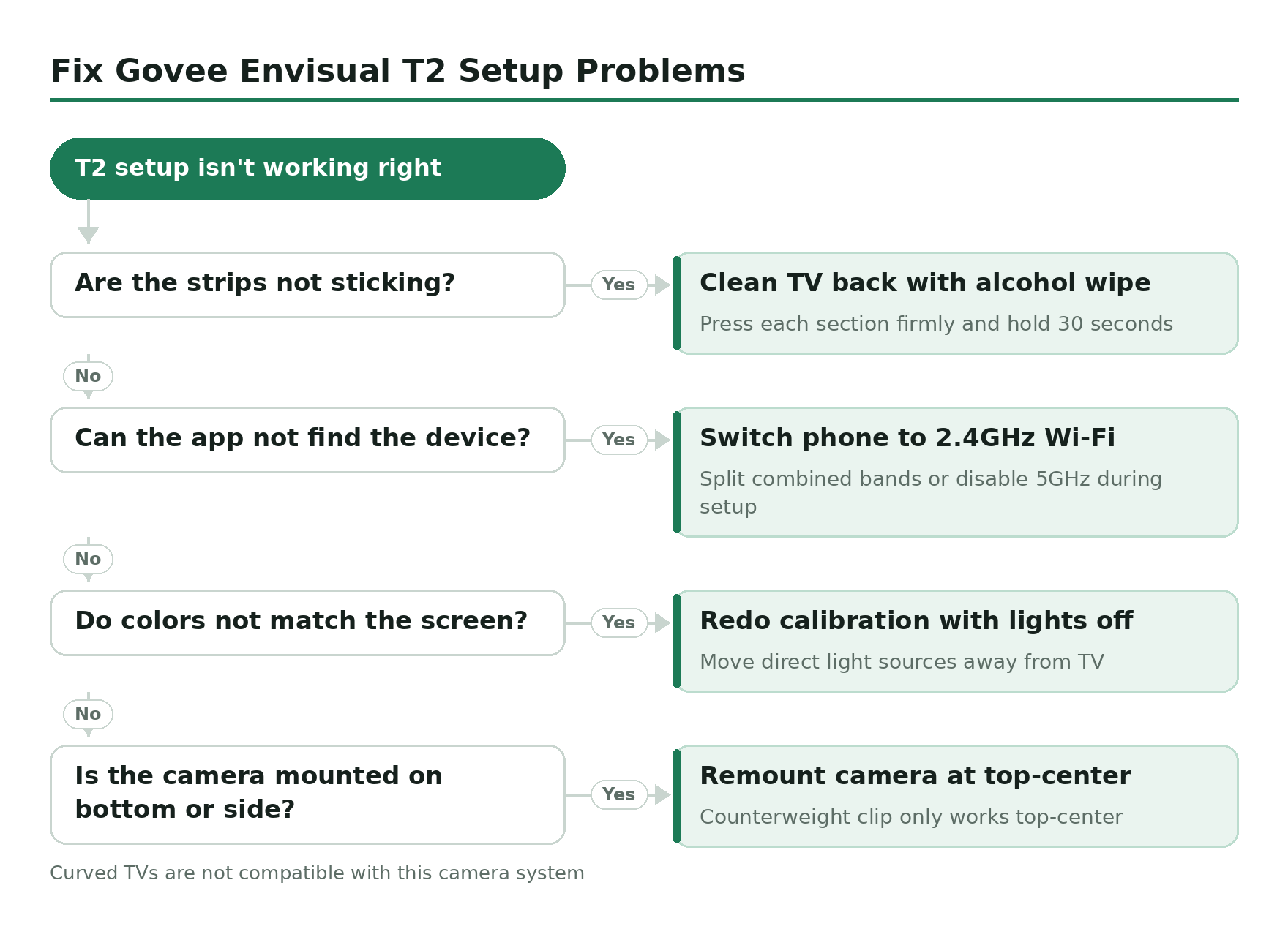
App can’t find the device: 99% of the time this is a 5 GHz Wi-Fi problem. The T2 only connects to 2.4 GHz. If your router combines both bands under one network name, either split them in your router settings or temporarily disable 5 GHz during setup.
Colors don’t match the screen: Redo calibration with the room lights off and direct light sources moved away from the TV. Also check that the camera hasn’t shifted from the top-center position – it needs a clear, unobstructed view of the full screen.
Camera positioning: The T2’s dual-camera system uses a counterweight gravity clip – it only works mounted at the top of the TV. Don’t try to mount it on the bottom or a side. Curved TVs are not compatible with this system.