

This post contains affiliate links. If you buy through them, DumbSwitches may earn a commission at no extra cost to you. See our full disclosure.
Dimming a HomeKit room means picking between two different products that solve the same problem differently: a smart bulb that dims itself, or a dimmer switch that dims whatever bulb is already screwed in. Most buying guides blur the two together. They shouldn’t – the right answer depends on your wiring, your fixture, and whether you want the dimming to happen automatically or by hand.
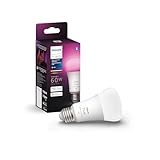
This guide covers the HomeKit-specific part of that decision: Adaptive Lighting, which dimmer switches actually work with Apple Home, and the handful of dimmable bulbs that do something the switches can’t. For the full field of HomeKit-compatible bulbs across every brand and protocol, see our best smart bulbs guide. For switches generally, including the neutral-wire question that trips up most first-timers, see our smart light switch guide.
Dimmer switch or dimmable bulb – which one you actually need
A dimmer switch controls whatever bulb is in the fixture, smart or not, so it works with cheap LEDs you already own and it keeps working if you swap bulbs later. A dimmable smart bulb carries its own dimming electronics, which means per-bulb color temperature and Adaptive Lighting, but only if the wall switch stays on – flip the physical switch off and the bulb goes offline along with its smarts.
- Choose a dimmer switch if the fixture holds multiple bulbs (a switch dims all of them at once with no per-bulb pairing), if the room has a household member who’s going to hit the physical switch out of habit, or if you want dimming to survive a bulb swap.
- Choose a dimmable smart bulb if you want Adaptive Lighting’s automatic color-temperature shift, if you’re renting and can’t touch the wiring, or if the fixture only holds one bulb and you don’t want to open a wall box.
- Don’t run a smart bulb through a traditional (non-smart) wall dimmer. A standard dimmer cuts voltage in a way most smart bulb drivers weren’t built for, which degrades the internal electronics faster and can cause flicker or early failure. Leave that wall switch at full on and dim through the app, Siri, or a compatible smart dimmer instead.
Adaptive Lighting: HomeKit’s automatic dimming
Adaptive Lighting is a built-in Home app feature, not a separate purchase – it shifts a bulb’s color temperature from cooler, energizing light in the morning to warmer, dimmer light in the evening on its own, with no automation or Shortcut required. It only works on bulbs that are both HomeKit-certified and explicitly support the feature, and it only affects color temperature and brightness on bulbs that already do tunable white – it doesn’t retrofit dimming onto a bulb that can’t dim.
To turn it on: open the bulb’s tile in the Home app, scroll to the bottom, and toggle Adaptive Lighting. If the toggle isn’t there, the bulb doesn’t support it. Every bulb in the picks below does.

HomeKit dimmer switches worth buying
Two switches on the market are worth a specific mention for HomeKit dimming – both are covered in more depth, alongside on/off switches and the full neutral-wire explainer, in our smart light switch guide.
- Lutron Caseta PD-10NXD. Lutron’s dimmer model, distinct from the PD-6ANS on/off switch. Runs on Lutron’s proprietary Clear Connect RF mesh rather than Wi-Fi or Zigbee, needs no neutral wire, and is HomeKit-native. The catch: it requires the Caseta Smart Bridge to talk to Apple Home, which is an added box and cost on top of the switch itself, but it buys you local control that doesn’t depend on a cloud server staying up.
- Inovelli Blue Series (dimmer). A Zigbee 3.0 dimmer with Matter support, which is how it reaches HomeKit – not natively, but through Matter’s bridge into Apple Home. No neutral wire required. It’s the pick for Home Assistant users and anyone who wants more granular automation control than Caseta’s ecosystem exposes.
Both replace the physical wall switch, so the “smart bulb goes dark when someone flips the switch” problem doesn’t apply – the switch itself is the smart device, and any bulb downstream of it behaves normally.
Dimmable bulbs worth a HomeKit-specific look
Hue, Nanoleaf, and Meross all make solid HomeKit-dimmable bulbs, and all three get full writeups with current pricing in our best smart bulbs guide – no need to repeat that here. Two bulbs earn a dedicated look on a dimming-focused page: one because Adaptive Lighting is its whole reason for existing, the other because nothing else on the market does what it does.
Aqara LED Bulb T2 (E26) – the Adaptive Lighting specialist
Aqara’s T2 E26 is a dual-protocol bulb (Thread and Zigbee) that’s tunable white only – no color – with a 2700K-6500K range and 1100 lumens. That’s not a limitation for Adaptive Lighting purposes, it’s the point: dropping color from the spec is what lets the T2 dim smoothly down to genuinely low levels and shift temperature cleanly across the day, instead of splitting engineering effort between color rendering and white-tuning precision.
No hub is required for the Thread/Matter path. An Aqara hub (M3, M2) is only worth adding if you’re already running other Aqara sensors on Zigbee and want tighter integration between them.
Eve Flare – the one that isn’t a bulb at all
Eve’s Flare is a portable, IP65-rated globe lamp with a built-in battery and a Thread radio – not a screw-in bulb, so it doesn’t fit into the switch-vs-bulb framework above at all. Charge it on a wireless pad, then carry it to wherever you need light: patio table, bedside, out by the pool (briefly – IP65 is splash-rated, not submersible). It’s HomeKit-native and fully dimmable with full RGB color, at 90 lumens – a mood light, not a room light.
Matter isn’t on the Flare specifically as of 2026, even though Eve has added it to most of the rest of its lineup – the Flare remains HomeKit-only. It’s a luxury purchase that exists because nothing else like it does; if the use case is general room lighting rather than portable accent light, any bulb above is the better buy.

Pairing a HomeKit-native bulb to the Home app
The pairing flow is nearly identical for every HomeKit-native bulb. If a bulb is Matter-only rather than HomeKit-native, you’ll scan a Matter code instead of a HomeKit code, but the steps in the Home app are otherwise the same.
Screw the bulb into a powered socket and turn the wall switch on.
Find the HomeKit setup code (8 digits) or Matter code (11 digits) on the bulb’s box, the bulb itself, or in the manufacturer’s app.
Open the Home app on iPhone or iPad. Tap the plus icon in the top right, then Add Accessory.
Point your camera at the setup code, or tap More Options and pick the bulb from the nearby-accessories list.
Assign the bulb to a room, give it a name (Living Room Lamp, not Bulb 1), and finish setup.
In the bulb’s accessory tile, scroll to the bottom and toggle on Adaptive Lighting if the bulb supports it.
If the bulb doesn’t show up in the nearby-accessories list, check that your phone is on the same 2.4 GHz Wi-Fi network the bulb is trying to join. Smart bulbs almost universally refuse 5 GHz, and most home routers hand out 5 GHz to phones by default.
Do you need a hub for any of this?
For remote access, automations, and Thread bulbs, yes. For pairing a bulb or a switch and controlling it while you’re standing in the same room, no.
If you don’t already own one, the cheapest HomeKit hub that also acts as a Thread border router is a HomePod mini. Apple TV 4K (3rd gen and newer) is the other common option. An old iPad parked on a charger used to work as a HomeKit hub, but Apple deprecated that path – see our breakdown on using an iPhone or iPad as a HomeKit hub for what still works. For the full picture on what a “HomeKit bridge” is and when you need one, we’ve got a dedicated guide.
Related guides
- Best smart bulbs – the full field across every protocol, including the Hue, Nanoleaf, and Meross picks this page doesn’t repeat.
- Best smart light switches – every switch worth buying, including on/off models, and the neutral-wire question explained in full.
- Does Philips Hue work with HomeKit? – bridge vs Bluetooth, what features you lose without the bridge.
- What is a HomeKit bridge? – when you need one, when you don’t.
- Can you use an iPhone as a HomeKit hub? – the short answer is “not really, anymore.”