

This post contains affiliate links. If you buy through them, DumbSwitches may earn a commission at no extra cost to you. See our full disclosure.
A HomeKit bridge is a translator – it takes devices that speak Zigbee, Z-Wave, or a proprietary protocol and converts them into accessories the Apple Home app can see and control. Without one, any device that isn’t natively HomeKit-certified is invisible to Siri and the Home app.
There are two kinds: hardware bridges (a dedicated hub you buy and plug in) and software bridges (an app or service running on a machine you already own). Both do the same job at the protocol level – they speak the accessory’s native language on one side and HomeKit Accessory Protocol on the other. Which one you want depends on what you’re trying to connect and whether you already have a machine you’re willing to leave running.
Hardware HomeKit Bridges
Hardware bridges are purpose-built hubs that handle protocol translation on-device. They’re reliable, always on, and don’t depend on a PC or server staying awake.
Philips Hue Bridge
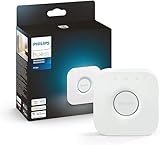
The Philips Hue Bridge is the original hardware bridge most people run into. It speaks Zigbee to your bulbs and exposes everything to HomeKit over your local network. The standard model (ASIN B016H0QZ7I) supports up to 50 lights and accessories. In 2025, Signify released the Hue Bridge Pro – a faster chip, support for 150+ lights and 50+ accessories, and Matter bridging built in. If you’re starting fresh or have a large Hue setup, the Pro is the current buy.
Lutron Caseta Smart Bridge Pro 2
Lutron Caseta uses its own Clear Connect RF protocol – not Zigbee, not Z-Wave – and the Smart Bridge Pro 2 (L-BDGPRO2-WH) is what turns it into a HomeKit system. It supports up to 75 Caseta dimmers, switches, Pico remotes, and wireless shades. Certified HomeKit, connects via Ethernet, and keeps working locally if your internet goes down. If you have Caseta switches installed, you need this specific bridge – the cheaper standard bridge doesn’t include HomeKit support.
Aqara Hub M3
The Aqara Hub M3 is the most capable hardware bridge in this category right now. It handles Zigbee 3.0, Thread, and Matter in one box – which means it can bridge your existing Zigbee devices into HomeKit while also acting as a Thread border router for newer devices. It also exposes Aqara Zigbee devices as Matter accessories, so they work across Apple Home, Alexa, Google Home, and Home Assistant at the same time. The built-in 360-degree IR blaster is a bonus if you have older A/V gear or a dumb AC unit you want to automate.

Software HomeKit Bridges
Software bridges run on hardware you already own – a Raspberry Pi, a NAS, or a spare PC. More setup involved, but you get a lot more flexibility and it costs nothing beyond the hardware.
Homebridge
Homebridge is the gold standard for software bridging. It’s a free, open-source Node.js server that emulates the HomeKit Accessory Protocol, making non-certified devices appear as native HomeKit accessories in the Home app. Version 2.0 (released May 2026) added full Matter support – so devices you bridge through Homebridge can now appear in Apple Home, Google Home, Alexa, and SmartThings at the same time.
The plugin ecosystem is massive – over 2,000 plugins covering everything from robot vacuums to garage doors to Govee lights. If the device has an API, there’s almost certainly a Homebridge plugin for it. You can run it on a Raspberry Pi 4, a spare Mac mini, a Synology NAS, or via Docker on any Linux machine.
Home Assistant HomeKit Bridge
If you’re already running Home Assistant, you don’t need Homebridge. HA has a built-in HomeKit Bridge integration that exposes any HA entity to the Apple Home app. That means anything Home Assistant can see – Zigbee devices, Z-Wave devices, cloud integrations, custom sensors – can appear in HomeKit through a single integration. The limit is 150 accessories per bridge instance, but you can create multiple bridge instances to go beyond that.
This is the most powerful option if you want deep automation and multi-platform control. Home Assistant runs the brains; HomeKit becomes one of several control surfaces.
What a Bridge Is Doing Under the Hood
“Exposing an accessory to HomeKit” isn’t a metaphor. A bridge has to fully implement Apple’s HomeKit Accessory Protocol (HAP) for every device it fronts, including the same pairing handshake a real HomeKit-certified gadget would run.
Per Apple’s own HAP specification, initial pairing (Pair Setup) uses Stanford’s Secure Remote Password protocol, modified to use SHA-512 instead of SHA-1 and the 3072-bit group from RFC 5054. That’s what happens the first time you scan a bridge’s setup code in the Home app – it’s proving your iPhone and the bridge both know the setup code without ever sending it over the network. Every reconnection after that (Pair Verify) switches to Curve25519 key exchange, with the session key derived through HKDF-SHA-512 and the actual accessory traffic encrypted with ChaCha20-Poly1305. A bridge that skips or fakes any of this simply won’t show up as a valid accessory – the Home app checks the handshake, not just a network response.
That’s also why hardware bridges that also speak Matter – the Hue Bridge Pro and Aqara Hub M3 in this list – can present the same Zigbee bulb to Apple Home, Alexa, and Google Home simultaneously without one platform’s automations breaking another’s. The Matter spec requires every bridge to guarantee at least four Access Control Entries per fabric it supports (a “fabric” is one ecosystem’s slice of the device – Apple Home is a fabric, Alexa is a fabric, and so on). A bridge juggling five fabrics has to support at least 20 ACL entries, with a floor of 4 reserved for each one. That’s the spec-level reason multi-ecosystem bridging doesn’t silently break when you add a second smart home app.
Bridge vs. Thread Border Router – Two Different Jobs
These two terms get used interchangeably, and they shouldn’t be. A bridge operates at the application layer – it terminates a foreign protocol like Zigbee or Z-Wave and re-presents each device as a HomeKit accessory, running the pairing handshake described above. A Thread border router operates one layer down, at the network layer. Its only job is routing IPv6 packets between the Thread mesh and your regular Wi-Fi network, so a Thread device can reach the internet and your phone can reach it back – no protocol translation involved.
That’s why a Matter-over-Thread lock doesn’t need a bridge, even though it still needs a border router somewhere on the network. HomePod mini, the second-generation HomePod, and the 2021-and-later Apple TV 4K all run that border router function automatically the moment you set one up as a Home Hub – the original 2018 HomePod and the first Apple TV 4K don’t have a Thread radio, so they can’t. Aqara’s Hub M3 does both jobs in the same box: bridge for your Zigbee sensors, border router for anything Matter-native. Buy it for the bridging – the border router half you may already be running for free.
HomeKit Bridge vs HomeKit Hub – They’re Not the Same Thing
This trips a lot of people up. A HomeKit hub (Apple TV 4K, HomePod, HomePod mini) enables remote access to your smart home, runs automations when you’re away, and handles Thread networking. It’s Apple-made hardware that keeps your HomeKit system running 24/7.
A HomeKit bridge is a protocol translator. It takes devices that HomeKit can’t natively talk to and makes them visible to HomeKit. They’re two separate functions. You likely need both – a hub for remote access, and a bridge for any legacy or non-certified devices.
The local-processing part is easy to misunderstand. While your phone is on the same Wi-Fi network as your accessories, the Home app talks to them directly, and a bridge only gets involved for the devices it’s translating. Automations are different – those always run on whichever Home Hub is currently elected primary, even for a light switch three feet away, so if your only Home Hub goes offline, scheduled and sensor-triggered automations stop firing even though manual control over the app still works.
Do You Need a Bridge in 2026?
It depends entirely on what devices you own or plan to buy. Matter has changed the calculus, and Thread specifically is why.
Any device that supports Matter can appear in HomeKit natively with no bridge required – just scan the QR code and you’re done. By 2026, Matter-certified devices cover most common categories: lights, plugs, switches, locks, sensors, thermostats, and cameras (Matter 1.5). Brands like SwitchBot, Eve, IKEA, and TP-Link Tapo have launched Matter products that work directly in Apple Home over Wi-Fi or Thread. For the current breakdown of what’s natively supported and what still needs help, see our full HomeKit compatible devices list – it’s the better starting point if you’re not sure which category your device falls into.
The mechanical reason Matter-native devices skip the bridge step: they commission directly into Apple’s Matter fabric using Matter’s own session-establishment scheme – PASE for the initial setup-code pairing, CASE for every session after that – not the SRP-and-Curve25519 handshake described earlier. A bridged Zigbee bulb still runs that full legacy HAP pairing at the bridge. The Home app treats both as valid HomeKit accessories either way, but a Matter device got there with one fewer protocol translation sitting between it and your phone.
There’s also a real reliability argument for choosing Thread over legacy Zigbee where you have the option. A 2026 real-hardware test out of Politecnico di Milano (an unreviewed preprint, not yet peer-reviewed, but built on an actual six-node testbed) found Zigbee mesh networks losing nearly half their commands at five hops – only 94 of 180 test commands got through – and crashing the coordinator outright at six hops, while Matter over Thread kept running under the same conditions on the same hardware. Zigbee wasn’t worse everywhere: it recovered from a failed node in well under a second (0.36s average) against roughly 24 seconds for Thread in the same test, and single-hop Zigbee ran about 30% lower latency than Thread. But the two failure modes at longer hop counts are exactly why a five-year-old Zigbee mesh with bulbs scattered around a large house sometimes gets flaky in ways a bridge can’t fully paper over – Zigbee’s own spec caps mesh depth at 15 hops, but this testbed suggests real-world reliability craters well before you get anywhere near that ceiling.
Where bridges still earn their keep: an existing investment in Zigbee devices (Hue bulbs, Aqara sensors, third-party Zigbee gear), older Lutron Caseta switches, or any device that predates Matter and will never get a firmware update. That hardware isn’t going anywhere, and a bridge is what keeps it working inside your HomeKit setup. Z-Wave devices are a special case here – the protocol caps out at 232 nodes and 4 hops per network, but none of the mainstream hardware bridges above speak Z-Wave at all, so a Z-Wave lock or sensor almost always ends up going through Home Assistant or Homebridge plus a USB Z-Wave stick, not a dedicated hardware box. For new purchases, check for Matter certification first and you can skip the bridge entirely.
Mini splits and window ACs are a different case again: the AC unit itself will likely never be Matter-certified, but a controller like Sensibo still pairs natively with HomeKit by putting a certified IR translator in front of it – see our Sensibo review for how that setup works.
How to Set Up Homebridge
Homebridge runs on a Raspberry Pi 4 (the most common setup), a NAS, or any Linux machine. Here’s the setup process:
Install Homebridge on your device
On a Raspberry Pi, use the official Homebridge installer script from homebridge.io – it handles Node.js and all dependencies. On a Synology NAS or other Docker host, pull the official homebridge/homebridge Docker image. Homebridge v2 requires Node.js v22 or v24.
Open the Homebridge UI
Once installed, access the web interface at your device’s IP address on port 8581 (e.g. http://192.168.1.x:8581). Create your admin account on first login.
Install plugins for your devices
Go to the Plugins tab and search for your devices – search the brand name or ‘homebridge-‘ plus the device type. Install the relevant plugin and follow its configuration guide. Most plugins walk you through entering your device credentials or local IP.
Scan the QR code in the Home app
In the Homebridge UI, go to the main dashboard and find the HomeKit QR code. Open the Apple Home app, tap the + button, choose ‘Add Accessory’, and scan the QR code. Your bridged devices will appear as accessories.
Assign devices to rooms and create automations
Once your accessories appear in the Home app, assign them to rooms and name them clearly. Create scenes and automations in the Home app exactly as you would for native HomeKit devices.