
This post contains affiliate links. If you buy through them, DumbSwitches may earn a commission at no extra cost to you. See our full disclosure.
The Ring Doorbell 2 has solid motion detection – good enough that plenty of people are still running it years after Ring pulled it from sale. The settings aren’t obvious, and the Ring app has changed a lot since 2022. Here’s what every option actually does and how to tune it.
Quick note: Ring discontinued the Doorbell 2 in 2020 (it disappeared from Ring.com, and retail stocks dried up through 2022-2023). If yours dies and you need a replacement, the Ring Battery Doorbell Plus is the closest current equivalent – same battery-powered setup, better video, and head-to-toe field of view. But if your Doorbell 2 is still working, everything below applies to it.
Where to Find Motion Settings in the Ring App (2025)
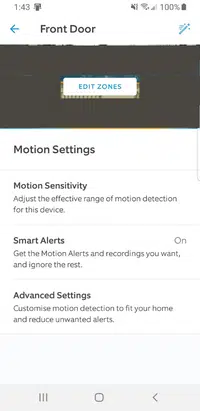
Ring has reorganized its app a few times. The current path: open the Ring app, tap the three-dot menu (…) on your Doorbell 2 tile, then go to Device Settings > Motion Settings. Everything motion-related lives under that one menu.
Motion Zones: Draw Your Detection Area
Motion Zones let you define exactly which parts of the camera’s field of view should trigger alerts. This is the single most useful thing you can do if you’re getting false alerts from street traffic or a neighbor’s driveway.
The Doorbell 2 supports up to three custom zones. Each one is a polygon you drag to fit the area you care about. A well-drawn zone that covers your path and porch – but stops before the sidewalk – cuts false alerts dramatically without missing anything that matters.
Open the Ring app and tap the menu icon (three dots) on your Doorbell 2.
Go to Device Settings, then tap Motion Settings.
Tap Motion Zones. You’ll see a live camera view with the current zone overlaid.
Tap a zone to edit it, or tap Add Zone to create a new one. Drag the corner handles to reshape it.
Pull the zone boundary back from the sidewalk or street. Cover your path, steps, and porch – not public space.
Tap Save. Test it by walking through the zone.
Motion Sensitivity: The Slider
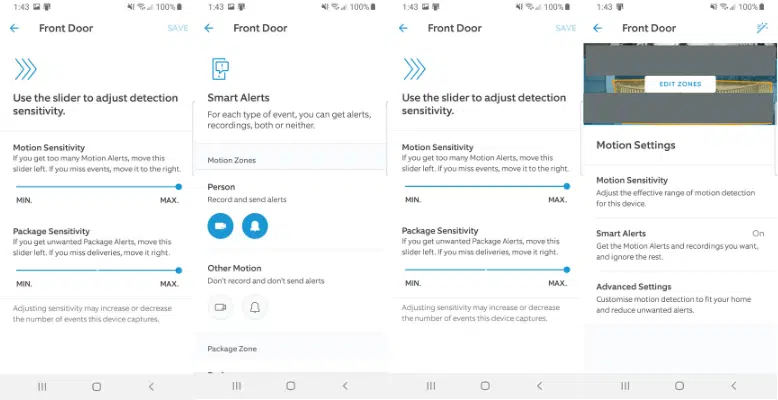
Under Motion Settings, the sensitivity slider runs 1 to 10. Higher values pick up more distant or slower movement. Lower values require something to actually be close and moving clearly before triggering.
A few calibration rules that hold up in practice:
- Busy street nearby: Start at 3-4. Move zones first, sensitivity second.
- Quiet neighborhood, want to catch everything: 7-8 is fine. 10 will pick up shadows and distant cars.
- Trees or bushes in frame: Drop sensitivity to 3-5 and redraw zones to exclude them, or you’ll get wind alerts all day.
- Night-time misses: Sensitivity doesn’t directly control night vision, but bumping it up helps the passive infrared sensor catch body heat in low light. Try 6-7 if you’re missing people at night.
Motion Frequency: How Long Between Alerts
This setting is in Advanced Settings within the Motion Settings menu. It controls how long the doorbell waits before sending another motion alert after the first one. Three options:
- Frequently: Motion detection stays active continuously. You’ll get an alert for every detected event, back to back. Useful for a package-heavy porch or a high-security setup, but battery drain is real.
- Regularly: Takes a short cooldown after each alert before re-enabling detection. Good default for most homes.
- Occasionally: Longer cooldown. Fewer alerts, longer battery life. Fine for a low-traffic area where you mostly care about long events, not someone walking past twice.
If your battery is dying fast, switch from Frequently to Regularly before anything else. It’s usually the culprit.
Smart Alerts: Person and Package Detection (Subscription Required)
Smart Alerts filter motion events using AI – instead of alerting you to every leaf or passing car, they identify people, packages, and vehicles and let you specify which ones you want to hear about.
This feature requires a Ring Protect subscription. Ring currently offers two main tiers: Basic at $3.99/month (or $39.99/year) per device, and a multi-device plan at $10/month. Person Detection and Package Detection are available on Basic. Per Ring’s current documentation, Smart Alerts also extend motion detection range beyond what you get without a plan.
Without a subscription, you get basic motion alerts only – anything that moves triggers a notification. With Smart Alerts on, you can set it to only ping you for people, which cuts notification noise dramatically for most driveways.
To enable Smart Alerts: Motion Settings > Smart Alerts, then toggle on Person Detection, Package Detection, or both. You can also turn off “Other Motion” if you only want person alerts and want to stop hearing about passing vehicles.
Motion Scheduling: Quiet Hours
Motion Scheduling lets you define time windows when motion alerts are suppressed. The doorbell still records – you just don’t get pinged. Useful if you work from home and don’t need a notification every time the mail carrier shows up, or if you want silence overnight.
Find it under Motion Settings > Motion Schedules. You can set multiple time blocks across different days.
Linked Devices: Extend Coverage Automatically
If you have other Ring cameras, you can link them to your Doorbell 2 so that motion on the doorbell triggers recording on another camera (and vice versa). This is called Linked Devices and lives under Device Settings > Linked Devices.
Practical use: your doorbell detects motion at the front, which auto-arms a backyard camera. Covers the scenario where someone rings the bell as a distraction while an accomplice goes around the back. (Rare, but the feature exists and it’s free.)
Ring Alarm Integration
If you have a Ring Alarm system, doorbell motion events can trigger it. This is configured under the Alarm app settings, not the doorbell itself. When the system is in Home or Away mode, doorbell motion can activate the alarm or trigger a response.
Troubleshooting Motion Detection Problems
Not Detecting Motion at All
- Check that Motion Detection is enabled. It’s a toggle in Motion Settings. It gets turned off accidentally more than you’d think.
- Sensitivity too low. Bump it up to 6-7 and test.
- Motion zone drawn incorrectly. If the zone doesn’t cover the actual path someone walks, they’ll pass right through without triggering it. Check the zone covers the approach, not just the porch.
- Low battery. The Doorbell 2 reduces motion detection aggressiveness when battery drops below around 20%. Charge it first, then test.
- Poor Wi-Fi signal. Weak signal causes delayed or dropped recordings. Check RSSI in Device Health – anything worse than -65 dBm is a problem worth fixing.
- Dirty lens. A smudged or dusty lens kills contrast and reduces detection accuracy. Wipe it down with a dry cloth.
Too Many False Alerts
- Redraw motion zones to exclude the street, parked cars, and neighbors’ property.
- Drop sensitivity to 3-5.
- If subscribed, enable Smart Alerts and set it to Person only.
- Switch Motion Frequency from Frequently to Regularly.
Motion Delay – Alerts Arriving Late
If you’re getting notifications 30-60 seconds after the event, it’s almost always a Wi-Fi issue. The Doorbell 2 processes motion on-device but uploads the clip and sends the push notification through Ring’s servers. Slow upload speeds or weak signal creates lag. Check your router signal strength at the doorbell location – the Ring app shows this in Device Health as RSSI.
Night Motion Detection Issues
The Doorbell 2 uses a passive infrared sensor that detects heat differences – it doesn’t purely rely on the camera image. In cold weather, body heat contrast is strong and detection works well. In warm weather when ambient temperatures approach body temp, detection range shrinks.
If you’re missing people at night, increase sensitivity to 7-8. Make sure your porch light isn’t blowing out the image – severe overexposure confuses the camera.