

This post contains affiliate links. If you buy through them, DumbSwitches may earn a commission at no extra cost to you. See our full disclosure.
Yes, Kasa smart plugs work with Alexa – and setup takes about two minutes. The exact method depends on which plug you have: standard Kasa plugs use the TP-Link Kasa Alexa skill, while Matter-compatible models like the KP125M can connect directly to Alexa without any skill at all.
Which Method Do You Need?
- Most Kasa plugs (KP115, EP10, HS103, EP25, and others) – use the Kasa skill method below.
- KP125M owners – you can use either method, but Matter direct pairing is simpler and more reliable.
Not sure which plug you have? Check the label on the plug itself or the Kasa app. If it says “Matter” anywhere, you have options.
Method 1: Kasa Skill (Works With All Kasa Plugs)
This is the standard setup for any Kasa plug that isn’t Matter-enabled. You’re linking your Kasa account to Alexa via the “TP-Link Kasa” skill, after which Alexa discovers your devices automatically.
Alternatively, you can do this entirely from the Alexa app: open Alexa, go to Skills & Games, search “Kasa Smart,” enable the skill, and sign in. Same result, different starting point.
Method 2: Matter Direct Pairing (KP125M Only)
The KP125M supports the Matter protocol, which means Alexa can pair with it directly without any skill, account linking, or cloud-to-cloud relay. It’s the cleaner setup if you’re starting fresh.
Voice Commands Once Connected
Once Alexa has your plug, the commands are exactly what you’d expect. Use whatever name you gave the device in the Kasa app (or renamed it to in Alexa).
- “Alexa, turn on [device name].”
- “Alexa, turn off [device name].”
- “Alexa, what’s the status of [device name]?”
- “Alexa, turn off all the lights.” (if devices are in a group)
The energy monitoring command (“Alexa, what’s the energy consumption of…”) only works on plugs that have energy monitoring hardware – the KP115 (also on Amazon) and KP125M both have it, most basic Kasa plugs don’t.
You can also bundle plugs into Alexa groups and trigger them with a single routine. “Goodnight” turning off the coffee maker, the desk lamp, and the space heater in one shot is where this stuff actually earns its keep.
Troubleshooting
Alexa Can’t Find the Kasa Plug
- Check the skill is enabled. Go to Alexa app > Skills & Games and search “Kasa Smart.” If it isn’t enabled and linked, Alexa has nothing to discover.
- Confirm the plug is on 2.4GHz WiFi. Kasa plugs don’t support 5GHz. If your router broadcasts both bands with the same name, connect the plug to the dedicated 2.4GHz band.
- Say “Alexa, discover devices” after linking the skill. Auto-discovery doesn’t always fire immediately.
- Check the plug is actually online in the Kasa app. If it shows offline there, Alexa can’t reach it either. Fix the WiFi connection first.
- Move it closer to the router temporarily to rule out signal drop. If it works nearby but not in its normal spot, you’ve found your problem.
- Reset and re-add. Hold the button for 5 seconds (soft reset) or 10 seconds (full factory reset). Re-run the Kasa app setup, then rediscover in Alexa.
Plug Shows in Alexa But Won’t Respond
Usually a WiFi dropout or a TP-Link cloud hiccup. Check the Kasa app first – if the plug is unresponsive there too, it’s a connectivity issue, not an Alexa problem. More detailed Kasa troubleshooting here.
Related Guides
- Complete Kasa Smart Plug Setup Tutorial
- Using the Kasa App to Control Devices
- Kasa Smart Plug Mini Review
- Does Kasa Work With HomeKit?
- 4 Best Uses for Kasa Smart Plug
Still Using Kasa? Here’s the Upgrade.
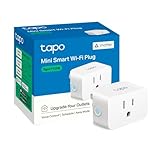
Kasa smart plugs still work, but TP-Link has been winding the brand down in favor of Tapo. The KP125M is no longer sold new through most major retailers, and older models like the EP25 are fully discontinued.
The direct replacement is the Tapo P125M – same compact design, same energy monitoring and scheduling, but with Matter certification added. That means it connects directly to Apple Home, Google Home, or SmartThings without needing a cloud account. If you’re already on the Kasa app, the Tapo app is nearly identical.