

This post contains affiliate links. If you buy through them, DumbSwitches may earn a commission at no extra cost to you. See our full disclosure.
Setting up the Geeni app takes about ten minutes total – download from the App Store or Google Play, create an account with your email, then pair each device over 2.4 GHz Wi-Fi using either EZ Mode (fast blinking light) or QR code scanning for cameras. This guide walks through the install, the account, every common device class, and the two voice-assistant hookups people actually want.

Pretty much everything in here applies to Geeni app version 4.0.5, the current build as of April 2026. If you’re brand new to the platform, the overview of what the Geeni app actually does is a useful primer before you start tapping buttons.
What you need before you start
- A phone running iOS 13 or later, or Android 8 or later. Geeni won’t install on anything older.
- A 2.4 GHz Wi-Fi network. Not 5 GHz, not Wi-Fi 6 6 GHz, not a mesh band that auto-roams between the two. Geeni devices physically cannot see 5 GHz radios.
- Your Wi-Fi password handy. You’ll type it during every pairing.
- An email address. Account creation is email-and-password. Phone number is optional and only used for two-factor authentication, which Geeni added in 2024.
- The device you want to pair, plugged in and within Wi-Fi range of where you’re standing. Range matters a lot during the pairing handshake – much more than during normal use.
If your router auto-roams between 2.4 and 5 GHz on the same SSID, that single setting causes more failed Geeni pairings than anything else. Log into the router and either turn the band-steering off temporarily, or create a separate 2.4 GHz-only SSID just for pairing IoT gear. You can re-enable steering afterwards – the device remembers the network name, not the band.
Install the app and create an account
The app is free, ad-free, and works exactly the same on iPhone and Android. Download Geeni from the App Store or Google Play – those are the only two legitimate sources. There’s no desktop or Windows version. Anything claiming to be “Geeni for PC” is an Android emulator workaround and not worth the security tradeoff.
That’s the entire onboarding. The app drops you on the empty Home screen with a big plus button in the top-right corner. That’s where every pairing starts.
Pair a Geeni smart bulb
Bulbs are the easiest device class to pair – they go in seconds when they cooperate, and the failure mode is obvious when they don’t. Screw the bulb in and turn the wall switch on. If it’s never been paired before, it should start flashing rapidly the moment it has power. If it doesn’t flash, the bulb is asleep – flip the switch off, on, off, on, off, on, and wait. That three-cycle reset puts every Geeni bulb (including the Prisma Plus 800 color bulbs and the LUX warm-white line) into EZ pairing mode.
If EZ Mode fails (the progress bar hits 0 percent and sulks), drop back to AP Mode. Tap the dropdown in the top-right of the pairing screen, pick AP Mode, follow the prompts. AP Mode makes the bulb spin up a temporary Wi-Fi hotspot that your phone joins directly. It’s slower but more forgiving on weak signals or finicky routers.
Pair a Geeni smart plug
Plugs work the same way as bulbs, but the reset uses a physical button instead of a wall-switch dance. Hold the power button on the plug down for at least five seconds until the LED starts blinking rapidly. The Geeni SPOT and Geeni Dot models both follow this pattern, as do Switch Duo dual-outlet plugs (in which case each outlet pairs as a separate device under one physical plug).
Plug it in. Hold the power button until the LED blinks fast (about five seconds).
In the Geeni app, tap plus, Add Device, Power, then Plug.
Confirm the indicator is blinking quickly. Tap Next.
Enter your 2.4 GHz Wi-Fi credentials.
Wait for the pairing progress bar. Usually 30-60 seconds.
Rename and room-assign. Done.
If the plug refuses to flash quickly, hold the button for the full five seconds – shorter taps either toggle the outlet or do nothing. If it still won’t flash, the plug needs a hard reset: hold the button down through ten full seconds of slow blink before it transitions to fast blink. That extra five seconds wipes any old Wi-Fi credentials it was clinging to.
Pair a Geeni camera
Cameras don’t pair by Wi-Fi handshake the way bulbs and plugs do. They pair by scanning a QR code that the Geeni app generates on your phone screen, which the camera reads through its lens. It looks silly. It works well. The same flow covers the Geeni Look indoor camera, the outdoor Hawk and Sentry lines, the Scope pan-tilt models, and the doorbells.
The two most common camera-pairing failures: phone screen brightness too low for the camera to read the QR code (crank it to max), and holding the phone too close so the QR overflows the lens (back off to a foot, not three inches). For deeper camera-specific problems, the Geeni camera setup walkthrough covers angles, mounting, and the dual-band Scope Ultra which is the one exception to the 2.4 GHz rule. The camera status light decoder and the broader camera troubleshooting guide are the two pages to bookmark when something stops working a month in.
When pairing fails: the actual reasons
Geeni pairing failures cluster into a handful of repeat offenders. In rough order of frequency:
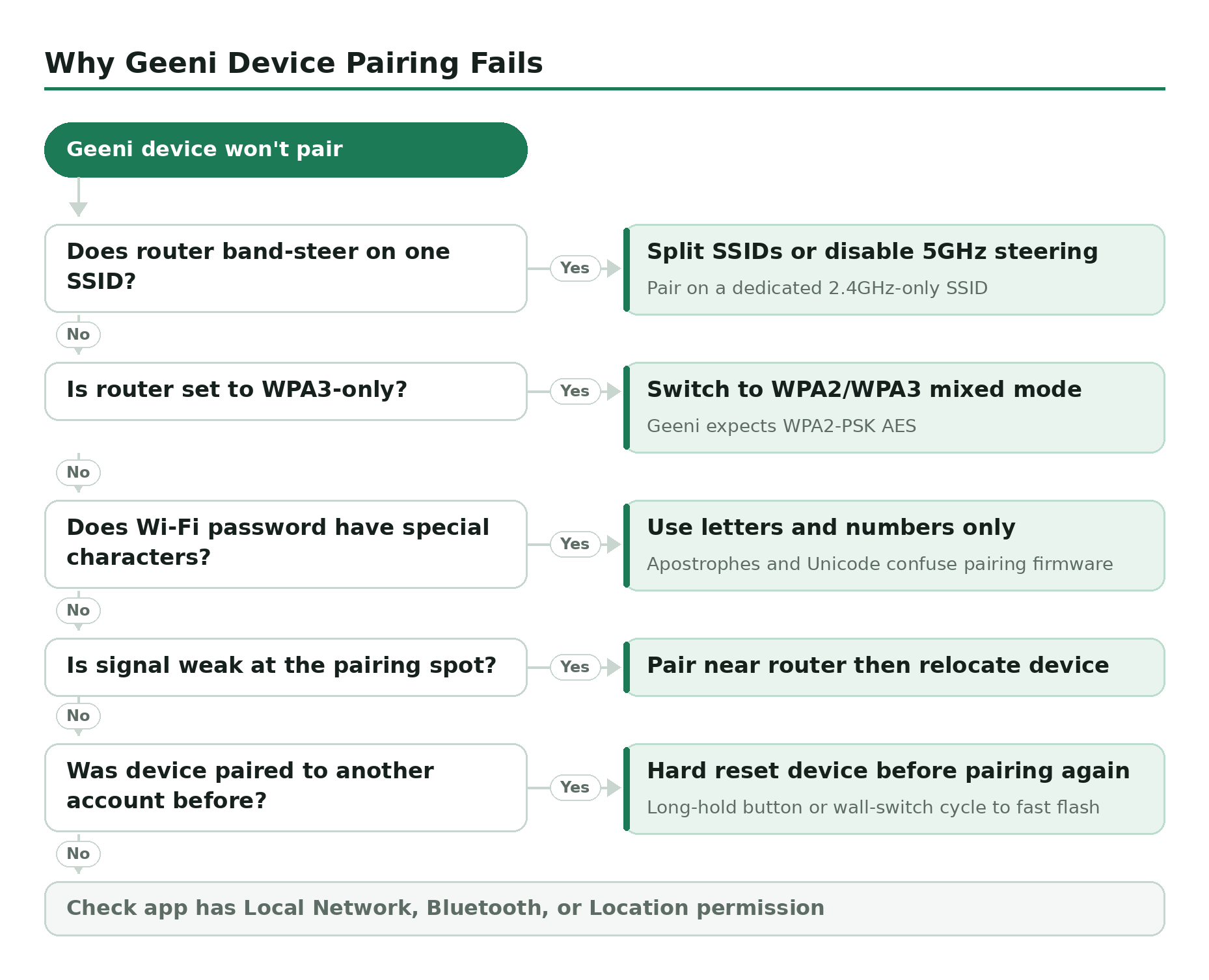
- Router band-steering on a single SSID. Your phone is on 5 GHz, the device is trying to find 2.4 GHz, the network name matches but the radio doesn’t. Either split the SSIDs or temporarily kill 5 GHz at the router during pairing.
- WPS or WPA3-only security. Geeni devices ship expecting WPA2-PSK (AES). If your router is set to “WPA3 only,” they can’t connect at all. Switch to WPA2/WPA3 mixed mode for pairing.
- Special characters in the Wi-Fi password. Apostrophes, ampersands, and high Unicode characters confuse the pairing firmware. Letters and numbers only is safest.
- Weak signal at the pairing spot. The handshake needs a stronger signal than ongoing operation. Pair near the router, then move the device to its final spot.
- The device was previously paired to another account. Hard-reset (long-hold the button or wall-switch cycle until you see fast flashing) before trying again.
- The Geeni app doesn’t have the right phone permissions. On iOS it needs Local Network and Bluetooth. On Android it needs Location (a Google requirement for Wi-Fi scanning, not a Geeni quirk).
Link Geeni to Amazon Alexa
The Alexa integration is a one-time link, not a per-device pairing. Once Alexa is connected to your Geeni account, every device you’ve already added (and every device you’ll add later) shows up in Alexa automatically. Voice commands like “Alexa, turn on the kitchen lights” or “Alexa, set the living room to 30 percent” work natively. There’s a full breakdown of what Alexa can and can’t do with Geeni bulbs if you want the deep dive.
Link Geeni to Google Home
Google Home is conceptually identical to the Alexa flow, just inside Google’s app and called a “service” instead of a “skill.”
Apple HomeKit is the obvious omission. Geeni doesn’t support HomeKit and Merkury has shown no sign of adding it. If HomeKit is a hard requirement for your setup, there’s a longer explanation of why Geeni doesn’t work with HomeKit and the workarounds people use (Homebridge plugins, primarily).
What to do once everything is paired
The basics: tap any device tile to control it. Slide for brightness or color on bulbs. Tap the camera tile for live view. Long-press for device settings (rename, reassign room, check firmware, delete).
The features that actually pay back the setup time are Schedules, Smart Scenes, and Family Sharing. Schedules let you say “porch lights at sunset, off at midnight” and forget about it. Smart Scenes string actions together – “When the front camera detects motion after dark, turn on the porch light for two minutes.” Family Sharing gives partners and roommates control without handing over your password. All three live under the Profile tab in the bottom-right.
Switching Wi-Fi networks or moving house
Geeni doesn’t have a “change Wi-Fi” feature for already-paired devices the way some platforms do. If you change router, change SSID, change password, or move to a new house, you have to remove each device from the app and pair it again on the new network. Annoying but unavoidable – the credentials are stored on the device itself, not retrievable through the cloud.
Two shortcuts that help: (1) if you’re moving house, name your new router’s SSID and password the same as the old one and your devices will reconnect automatically with zero work; (2) if you’re just adding a guest network or splitting bands, the same SSID trick applies.
Updating the app and device firmware
App updates come through the App Store and Google Play in the usual way – turn on auto-updates and forget about it. Device firmware updates are handled inside the Geeni app: tap the device, hit the pencil-icon settings, scroll to Device Update, and the app will check whether the bulb or camera has newer firmware available. Most updates are minor reliability fixes; the only one that’s actually meaningful was the 2024 patch that closed several camera-side vulnerabilities, which is why anyone running cameras should keep firmware current. The Geeni camera security writeup goes through the history.
Geeni alternatives worth knowing about
If you’ve already bought Geeni hardware and the app just refuses to cooperate, most Geeni devices can be re-paired into Smart Life or Tuya Smart, both of which run the same backend platform. Functionality is roughly identical, the UI is laid out slightly differently, and your Geeni account doesn’t carry over. There’s a longer comparison of when a Geeni app alternative makes sense for the people who’ve decided to switch.
Related guides
- What the Geeni app actually is – the overview before you start.
- Geeni app download links and version info.
- Geeni camera setup, step by step.
- Geeni camera troubleshooting for when something stops working.
- Geeni and HomeKit (spoiler: no).