This post contains affiliate links. If you buy through them, DumbSwitches may earn a commission at no extra cost to you. See our full disclosure.
Short answer: yes, but with real caveats. The original path everyone wrote about – using an Amazon Firestick with a third-party Hue Stream app – is effectively dead. The app disappeared from the Firestick ecosystem and is no longer a reliable option.
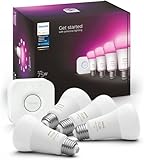
What genuinely works in 2026 without the Sync Box: the Hue Sync desktop app (PC or Mac connected to your screen) and the Hue Sync TV app on select LG and Samsung smart TVs. Neither requires the $230 Sync Box. What does still require the Sync Box: getting the Gradient Lightstrip to actually sync to your TV content in real time.
The Hue Sync TV App (No Box Needed)
This is the biggest change since 2023. Philips Hue now has a native smart TV app that handles sync directly – no Sync Box, no extra hardware at all.
What it works on right now: LG TVs running webOS 24 or later (2023, 2024, 2025 models after a firmware update) and select Samsung models. The LG version launched February 2025. Find it in your TV’s app store by searching “Philips Hue.”
What you need: a Hue Bridge and color-capable Hue lights set up as an Entertainment Area in the Hue app. That’s it. The TV app communicates with the Bridge directly over your local network.
Pricing: $130 one-time payment or $3/month subscription, paid through your TV’s app store. Not free, but a lot less than the Sync Box.
One thing the TV app does better than the Sync Box: it syncs to native streaming apps (Netflix, Disney+, etc.) running directly on the TV. The Sync Box only captures HDMI input and misses anything from the TV’s built-in apps.
Hue Sync App for PC or Mac
The Hue Sync desktop app has been around for years and still works in 2026. It captures whatever is on your computer screen and syncs your lights to it in real time – games, movies, anything.
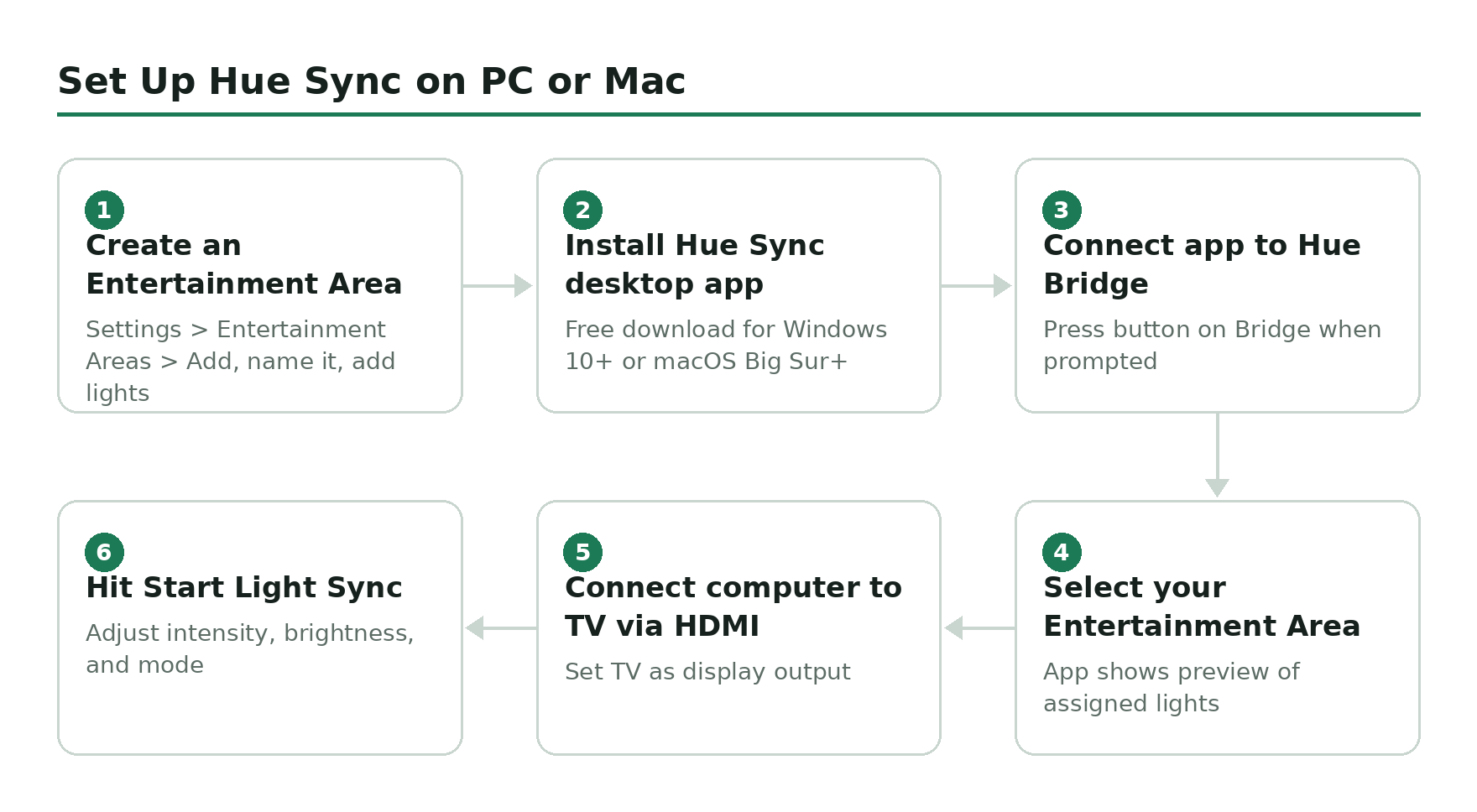
The setup is simple: install the app on Windows 10+ or macOS Big Sur+, point it at your Hue Bridge, assign your lights to an Entertainment Area, and run it. No extra hardware required.
The limitation: it only syncs to what’s on the computer display. If you run your PC or Mac connected to your TV as an external monitor and play content through the computer, this works well. If your TV runs its own apps independently, the desktop app does nothing for those.
As of late 2025, the desktop app added AI-enhanced light effects that detect specific in-game events, which is a nice upgrade for gaming setups.
Gradient Lightstrip – Yes, You Still Need the Sync Box
This one trips people up. The Philips Hue Play Gradient Lightstrip is designed to wrap around your TV and produce flowing, multi-zone color that mirrors what’s on screen. It looks great. But to actually sync it to your TV content in real time, you need both the Hue Bridge and the Sync Box.
Without the Sync Box, the Gradient Lightstrip still works – you can set static colors or run light scenes through the Hue app. It just won’t mirror your screen. The TV app route (LG/Samsung) can drive it, but that still requires a supported TV model.
The Amazon listing says it plainly: “Hue Hub & Hue Sync Box Required.” If you’re buying the Gradient Strip specifically for reactive TV backlighting and you don’t have a supported LG or Samsung, budget for the box too.
When You Actually Need the Sync Box
The Hue Play HDMI Sync Box is still the right answer in these scenarios:
- You have an older TV (pre-2023) that doesn’t support the Hue Sync TV app
- You want Gradient Lightstrip sync without a supported smart TV
- You’re running multiple HDMI sources (console, Blu-ray, streaming stick) and want them all covered through one box
- You want the lowest-latency sync available – the HDMI box is still faster than the TV app
If you’re in one of those situations, the Philips Hue Play HDMI Sync Box is still the most complete solution. It’s expensive, but it works with any TV and any content source.
How to Set Up Hue Sync on a PC or Mac Connected to Your TV
If you have a PC or Mac you can plug into your TV via HDMI, this is the easiest free path right now. Here’s the full setup: