
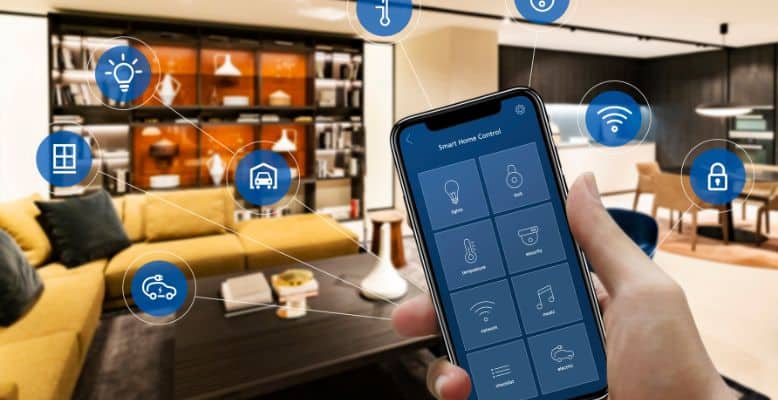
No, Smart Life does not natively support Apple HomeKit. It never has. The app runs on Tuya’s platform, and Tuya has never pursued the “Works with HomeKit” certification – partly because of Apple’s strict MFi requirements, partly because they’ve built their own ecosystem around Alexa and Google Assistant instead. If you were hoping to just add your Smart Life bulbs to the Home app and call it done, that’s not how this works.
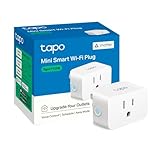
The good news: you can still get Smart Life and Tuya devices into HomeKit. It just takes one extra layer – either Homebridge running on your network, or a Matter-capable hub that bridges your devices across. Both work. Neither is instant setup.
Why Smart Life Doesn’t Support HomeKit
Smart Life is a white-label app built on Tuya’s cloud infrastructure. Tuya powers hundreds of cheap smart home brands – the lights, plugs, and switches you find on Amazon with names you’ve never heard of. The trade-off for that low cost is a closed, proprietary cloud stack that communicates through Tuya’s own servers rather than Apple’s HomeKit framework.
Apple HomeKit requires hardware certification through the MFi program, plus end-to-end encrypted local communication. Tuya devices use standard Wi-Fi and talk to Tuya’s cloud first – which is exactly what HomeKit isn’t. Tuya hasn’t pursued that certification, and there’s no indication they plan to. So native HomeKit support isn’t coming for the Smart Life app.
This is the same reason Govee and Geeni don’t have native HomeKit support – they’re also Tuya-based brands running the same cloud infrastructure.
The Homebridge Workaround
Homebridge is a lightweight Node.js server you run on your home network – typically on a Raspberry Pi or an always-on computer. It emulates the HomeKit API and lets you install plugins that bridge non-HomeKit devices into Apple Home. For Tuya and Smart Life specifically, Tuya maintains an official Homebridge plugin on GitHub.
Once set up, your Smart Life devices show up in the Home app like any native HomeKit device. You get Siri control, automations, and scenes. The catch is that you need Homebridge running 24/7 for it to work – if the server goes offline, your devices disappear from HomeKit.
If you want a pre-built hardware option rather than rolling your own, HOOBS (Homebridge Out Of the Box) ships as a plug-and-play device with Homebridge and the Tuya plugin pre-installed.
Install Homebridge
Install Homebridge on a Raspberry Pi or always-on computer. Follow the official Homebridge installation guide at homebridge.io for your platform.
Create a Tuya Developer Account
Go to iot.tuya.com and create a free developer account. Create a new Cloud Project and link your Smart Life app account to it. You’ll need the Access ID and Access Secret from your project.
Install the Tuya Homebridge Plugin
In the Homebridge UI, search for and install the official tuya-homebridge plugin (maintained by the Tuya Developer Team). Alternatively, install via npm: npm install -g homebridge-tuya.
Configure the Plugin
Add your Tuya Access ID, Access Secret, and Smart Life account credentials to the plugin config. Save and restart Homebridge.
Add to Apple Home
Open the Home app on your iPhone, tap the + icon, and scan the Homebridge QR code or enter the code shown in your Homebridge dashboard. Your Smart Life devices will appear as HomeKit accessories.
Matter as a Cleaner Path to HomeKit
Matter is a newer smart home standard backed by Apple, Google, Amazon, and others – including Tuya. Devices certified for Matter speak a common language that HomeKit understands natively, which cuts out the Homebridge middleman entirely.
Tuya has built a Matter Bridge SDK that lets compatible Tuya hubs expose your existing Zigbee 3.0 devices as Matter accessories. If your Smart Life devices connect through a Zigbee hub rather than directly over Wi-Fi, you may be able to use a Matter-certified gateway to get them into HomeKit without Homebridge.
Hardware options here include the Zemismart M1 Matter Hub and similar Tuya-compatible gateways available on Amazon. The catch: this path works best for Zigbee-based devices. Wi-Fi-only Smart Life devices don’t benefit as directly, and you’d still need a compatible hub in the mix.
If you want more background on Matter and how it relates to older protocols, the smart home automation protocols guide breaks it all down.
What About Smart Life Devices That Already Support HomeKit?
Some devices sold and controlled through Smart Life are actually from brands that pursued their own HomeKit certification independently. If your device’s packaging shows the “Works with Apple HomeKit” badge, it may pair directly with the Home app without any workaround – the Smart Life app and HomeKit both just happen to work with that device separately.
Check the original packaging or the manufacturer’s product page. If there’s no HomeKit badge, you’re in Homebridge territory.