

This post contains affiliate links. If you buy through them, DumbSwitches may earn a commission at no extra cost to you. See our full disclosure.
Home Assistant on a Raspberry Pi gives you a local, privacy-first smart home hub you actually own – no cloud subscription, no vendor lock-in, no “sorry we’re shutting down the servers” email. If you want to automate lights, sensors, thermostats, and a few dozen other devices from a single dashboard, this is the project.

This guide covers the recommended method in 2026: flashing Home Assistant OS directly to your Pi using Raspberry Pi Imager. It also covers what hardware you need, first-time configuration, and the dedicated hardware alternatives if you’d rather skip the DIY angle entirely.
What You Need
The short list before you start:
- Raspberry Pi 4 (4GB or 8GB) or Raspberry Pi 5 (4GB or 8GB) – Pi 4 handles everyday automations fine. Pi 5 is roughly 2-3x faster and worth the extra cost if you plan to run local voice control, AI features, or camera processing. If you’re buying new in 2026, get the Pi 5. Raspberry Pi 5 8GB on Amazon | Raspberry Pi 5 4GB on Amazon
- microSD card (32GB minimum, 64GB recommended) – Use a high-endurance card. Standard cards wear out fast under constant read/write loads. The SanDisk High Endurance 64GB is a reliable pick. Alternatively, on Pi 5 you can boot from a USB 3.0 SSD or NVMe for better long-term reliability.
- USB-C power supply – Use the official Raspberry Pi power supply. Underpowered third-party adapters cause instability. Official Raspberry Pi power supply.
- Ethernet cable – Wired connection is strongly recommended for the initial setup and for daily operation. Wi-Fi works but adds latency and occasional dropout headaches.
- A computer to flash the SD card – Windows, Mac, or Linux all work.
- microSD card reader – Many laptops have one built in. If yours doesn’t: Anker USB-C card reader.
Note on RAM: 4GB is the practical minimum for a smooth experience. Home Assistant itself uses 1-2GB, and add-ons eat the rest. 8GB gives you room to grow.
Installation Steps
The method below installs Home Assistant OS (HAOS) – the recommended installation type for most users. It’s a minimal operating system built specifically to run Home Assistant. It includes the Supervisor (for backups, updates, and watchdog), plus the Add-on Store. If you want the full ecosystem, HAOS is what you want.
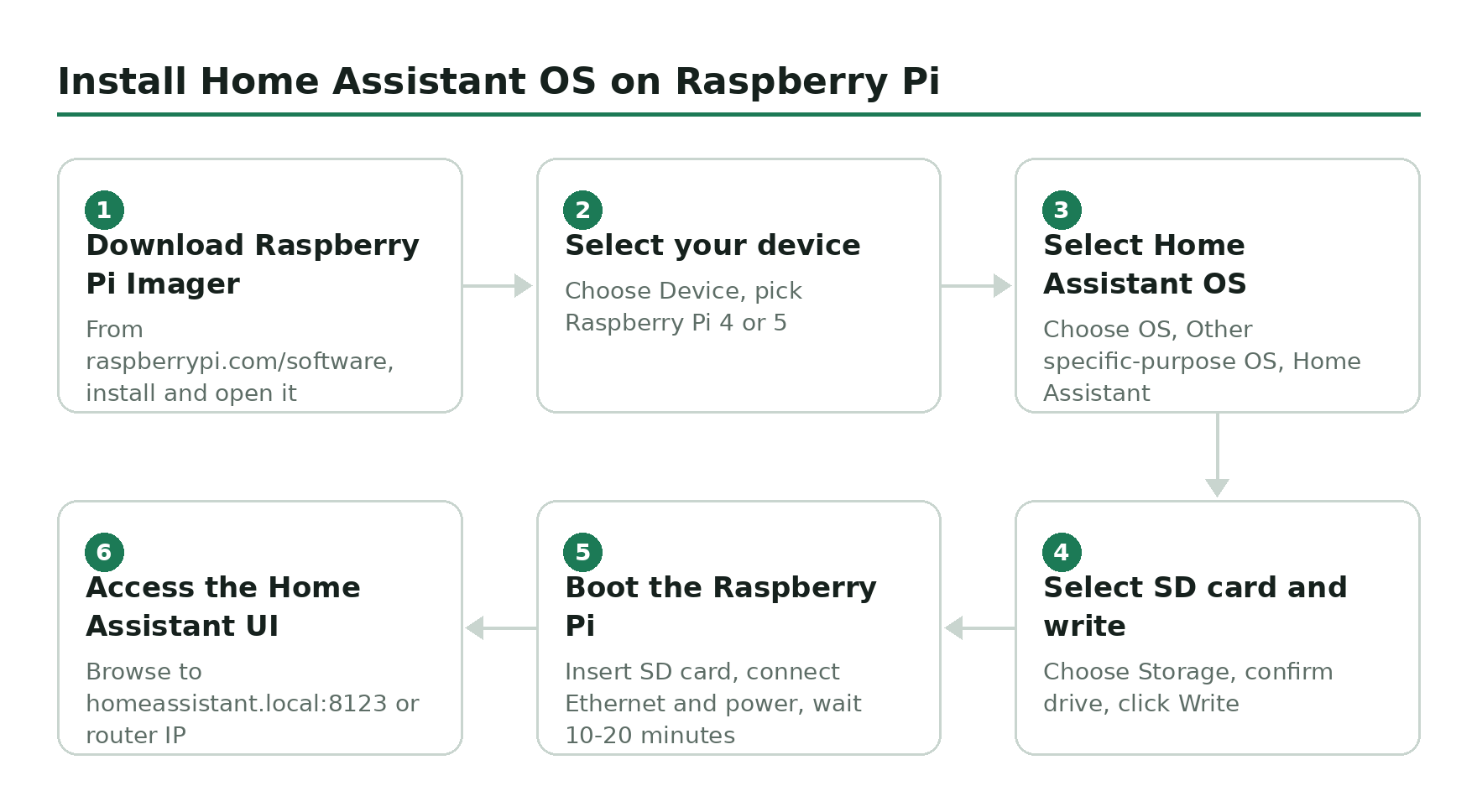
Home Assistant Container is the alternative – it runs HA Core inside Docker on top of your own OS. More control, no Supervisor, no Add-on Store. That’s a project for another guide. Start with HAOS.
First Configuration
When you hit the onboarding screen for the first time, you’ll be walked through account creation and basic setup:
- Create your account – This is your local admin account. Pick a strong password. This is not tied to any cloud service.
- Name your home, set location and elevation – Location is used for sun-based automations (e.g., turn on lights at sunset). Elevation affects weather accuracy.
- Unit system and time zone – Set these correctly. Automation schedules depend on the time zone.
- Device discovery – Home Assistant will scan your network and show discovered devices. You don’t have to integrate everything now – you can add devices from Settings > Devices & Services at any time.
After onboarding, a few add-ons worth installing early from the Add-on Store (Settings > Add-ons):
- File Editor – Lets you edit configuration files directly in the UI. Useful once you start customizing.
- Samba Share – Mounts the Home Assistant config folder as a network drive on your PC, which makes editing config files easier.
- Duck DNS + Let’s Encrypt – If you want remote access, these two handle the dynamic DNS and SSL cert. Free, and worth setting up before you need it.
Home Assistant releases updates monthly. As of May 2026, the current version is 2026.5, which added radio frequency joins, a new Maintenance dashboard for battery management, and improved tile cards. Updates appear automatically in the Supervisor panel – keep it current.
Home Assistant Hardware Alternatives
The Raspberry Pi route is great if you already have one or enjoy the DIY side of things. But Home Assistant (the company, Nabu Casa) also sells purpose-built hardware that comes with HAOS pre-installed and removes the “did I buy the right Pi” guesswork.
Home Assistant Green
The current entry-level dedicated hub. Priced around $99, it runs a 1.8 GHz quad-core Amlogic S905X3 with 4GB RAM and 32GB eMMC storage. Plug it in, connect Ethernet, and it boots straight into Home Assistant – no flashing, no setup friction. The trade-off: no built-in Zigbee/Thread radio, so you’ll need a USB dongle like the Home Assistant SkyConnect for those protocols.
Good pick if you want a dedicated device and don’t want to think about hardware compatibility.
Home Assistant Yellow
The Yellow was built around a Raspberry Pi Compute Module 4 with an onboard Zigbee radio and M.2 NVMe slot. It was discontinued in 2025 and is no longer available as new. If you find one used, it still receives full HAOS updates – but don’t buy it expecting to find it in stock.
For new buyers: Green is the current official option, or just build your own with a Pi 5 and a SkyConnect dongle.
Related Guides
Which Raspberry Pi is best for Home Assistant in 2026?
The Raspberry Pi 5 (4GB or 8GB) is the best choice if you’re buying new. It’s 2-3x faster than the Pi 4 and handles demanding add-ons like local voice control and camera processing. The Pi 4 4GB still works fine for everyday automations and is cheaper if you already have one.
Home Assistant OS or Home Assistant Container – which should I use?
Home Assistant OS is recommended for most users. It includes the Supervisor, which manages updates, backups, and the Add-on Store. Home Assistant Container runs HA Core inside Docker on your existing OS and gives more control, but you lose the Supervisor and Add-ons. Unless you have a specific reason to use Container, go with HAOS.
Can Home Assistant run without a Raspberry Pi?
Yes. Home Assistant runs on any x86-64 machine (old PC, Intel NUC, etc.), the ODROID N2+, or on Home Assistant’s own dedicated hardware (the Green hub). You can also run it in a VM or as a Docker container.
How many devices can Home Assistant handle on a Raspberry Pi?
More than you’ll need. A Pi 4 4GB can comfortably manage 100+ devices with multiple integrations running. The bottleneck is usually the number of automations running simultaneously, not the device count. A Pi 5 pushes that ceiling further.