

This post contains affiliate links. If you buy through them, DumbSwitches may earn a commission at no extra cost to you. See our full disclosure.
Hubitat ships an official HomeKit integration built into every current hub – C-5, C-7, C-8, and C-8 Pro – and it does not need Homebridge, a Raspberry Pi, or any other middleware. You install the HomeKit Integration app from inside Hubitat, pick which devices to expose, and scan the QR code with the Apple Home app. That is the whole setup.

The old advice you will still find on most blogs – “you have to use Homebridge because Hubitat is not natively compatible” – has been wrong since 2022. Homebridge is now the fallback, not the default. Below is the current procedure, the device types HomeKit will actually see, the limits worth knowing about, and the Homebridge route for the handful of edge cases where the built-in app does not cover what you need.
What the integration actually does
Hubitat’s HomeKit Integration is a one-way bridge that exposes Hubitat devices to Apple Home. Once paired, your Zigbee, Z-Wave, and natively-paired Matter devices show up in the Home app like any HomeKit accessory. You can run Apple automations against them, voice-control them with Siri, and stack them into HomeKit scenes.
What does not cross the bridge: Hubitat dashboards, rules, scenes, and Rule Machine logic. Apple Home only sees raw devices. If you have a complex Hubitat automation, it keeps running on the hub – HomeKit just gets to flip the same switches a human would.
Also worth saying up front: the bridge is not Apple-certified, so the Home app will warn you that “this accessory is not certified” the first time you pair. Tap Add Anyway. Every Hubitat user sees this.
Which Hubitat hubs support it
All of them, as long as you are on a reasonably recent platform version. Hubitat staff confirmed in the community forum that the HomeKit Integration app is available on the C-5, C-7, C-8, and C-8 Pro. The C-8 Pro additionally has a separate HomeKit Controller app (platform 2.4.2 or later) that goes the other direction – pairing HomeKit accessories into Hubitat – but that is a different feature from what this guide covers.
- Hubitat Elevation C-8 – current standard hub, Zigbee 3.0, Z-Wave 700, external antennas.
- Hubitat Elevation C-8 Pro – adds Matter 1.5, Thread, Z-Wave 800 Long Range, and the HomeKit Controller app.
- C-7 – still supported, no Thread radio, no native Matter pairing.
- C-5 – oldest hub still receiving firmware updates. Native HomeKit works. If it does not appear in your Apps list, the platform cache needs a refresh after firmware update.
Supported device types
Hubitat’s bridge does not pass every device class through. Per the official docs, the categories that work are:
- Switches, outlets, and dimmers
- Bulbs (dimmable, color temperature, and color/RGBW)
- Thermostats
- Window shades and blinds
- Contact sensors (door/window)
- Motion sensors
- Temperature sensors
- Presence sensors
- Button devices
Notably absent: locks, garage door openers, cameras, and most cloud-only integrations. If you are running an Ecobee or a Wi-Fi-only device through Hubitat, that one will not bridge over. That is the case Homebridge still solves for, covered further down.
Setting up HomeKit on a C-7, C-8, or C-8 Pro
This is the procedure for the built-in app. Same steps work on the C-5 once the app appears in your list.
Open the Hubitat web interface and go to Apps in the left sidebar.
Click Add Built-In App in the top right, then pick HomeKit Integration from the list.
Inside the app, tick Enable HomeKit Integration. It is off by default.
Authorize one or two devices first by checking the box next to each, then accept the confirmation dialog. Start small to confirm the pair works before adding the rest.
Scroll to the bottom of the same page. The HomeKit pairing QR code appears once at least one device is authorized.
Open the Apple Home app on your iPhone or iPad. Tap the plus icon, then Add Accessory.
Scan the QR code from the Hubitat page. When Home warns that the bridge is uncertified, tap Add Anyway.
Assign each device to a room, name it, and finish the Home setup flow.
Back in the Hubitat app, return to the device list and authorize the rest of your devices in batches. Each new device shows up in Home within a few seconds.
You only scan the QR code once. After the bridge is paired, new devices you authorize inside the Hubitat app just appear in Home automatically.
The 150-device cap and other limits
Apple, not Hubitat, sets a hard 150-device limit per HomeKit bridge. If you are running a big house with three hundred Zigbee bulbs, you will hit that ceiling. The workaround is to authorize only the devices you actually use from Home (the bulbs you control by voice, the sensors that drive Apple automations) and leave the rest local to Hubitat.
Other constraints to know about:
- Matter devices paired through Hubitat do not bridge. Apple’s spec blocks re-sharing a Matter device. Pair Matter accessories directly to Apple Home, then optionally also to Hubitat for local automation.
- Custom drivers may not expose the right capabilities. If a community driver does not report the standard capabilities HomeKit expects (Switch, SwitchLevel, ColorControl, etc.), the device will not show up. The fix is usually to swap to a built-in driver.
- Full remote access and HomeKit automations require an Apple Home hub. An Apple TV (4K) or HomePod has to live on your network as the resident hub – same requirement as any other HomeKit setup.
- The integration is one-way. Hubitat to Home only. To go the other direction on a C-8 Pro, use the separate HomeKit Controller app.
When you actually still need Homebridge
Two cases where the official integration is not enough and Homebridge is still the right answer:
- You want to expose a device class the bridge does not support – typically locks, cameras, or garage door openers running through Hubitat.
- You have a cloud-based integration on Hubitat (Ecobee, certain Wi-Fi switches) that the official bridge ignores, and you still want it in Home.
The community-maintained plugin for this is homebridge-hubitat-makerapi, which talks to Hubitat through the Maker API app and exposes whichever devices you allow. It still gets updates and works on current Homebridge releases.
Setting up Homebridge as a fallback
You will need a machine to run Homebridge on. A Raspberry Pi 4 or 5 is the usual answer, but any always-on Linux box, Mac mini, or NAS that supports Node.js works. The setup goes Maker API on Hubitat first, then Homebridge plugin second.
In Hubitat, install Maker API. Apps > Add Built-In App > Maker API.
Inside Maker API, select the devices you want to expose (be inclusive – it is easier to filter inside Homebridge later).
Note the local LAN URL and the access token shown at the bottom of the Maker API page. You will paste these into Homebridge.
Install Homebridge on your host machine. The official installer at homebridge.io covers Raspberry Pi, Docker, macOS, and Windows.
Open the Homebridge web UI (usually port 8581 on your local network) and go to the Plugins tab.
Search for homebridge-hubitat-makerapi and install it.
In the plugin config, paste in the Hubitat IP, the Maker API app ID, and the access token from step 3. Save.
Restart Homebridge from the dashboard (top-right power icon). Watch the logs for successful device discovery.
In the Apple Home app, tap Add Accessory and scan the QR code shown on the Homebridge dashboard home page.
You can run the native HomeKit Integration and Homebridge side by side. The bridges show up as separate accessories in Home, which is the cleanest way to handle the mix – native bridge for the device classes it supports, Homebridge for the locks and cameras it does not.
Troubleshooting pairing failures
If the Home app does not see the bridge or fails partway through pairing, the cause is almost always the network, not Hubitat. The most common culprits, in order of how often they show up in the Hubitat community forum:
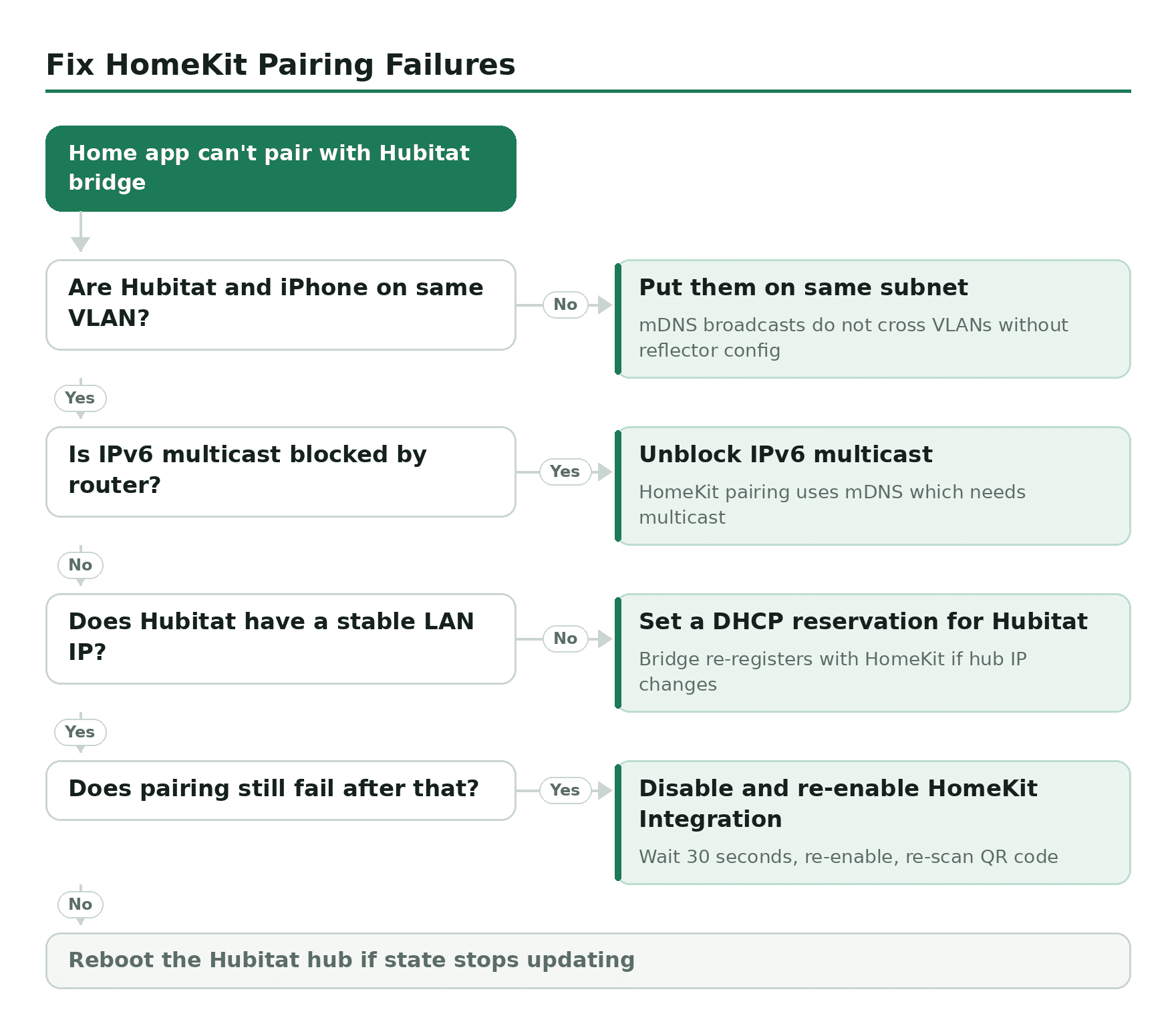
Make sure Hubitat and your iPhone (or Apple Home hub) are on the same VLAN/subnet. mDNS broadcasts do not cross VLANs without explicit reflector config.
Check that IPv6 multicast is not being blocked by your router. HomeKit pairing uses mDNS, which needs multicast to work.
Confirm Hubitat has a stable LAN IP. A DHCP reservation on your router is the cleanest fix – the bridge re-registers with HomeKit if the hub IP changes.
If pairing still fails, disable HomeKit Integration in the Hubitat app, wait 30 seconds, re-enable, and re-scan the QR code. This generates a new bridge identity.
If devices appear but state never updates in Home, reboot the Hubitat hub from Settings > Reboot. The HomeKit subscription occasionally needs a kick.
Related guides
- Can Hubitat control Wi-Fi devices? – what bridges over and what does not.
- What is a HomeKit bridge? – the background concept behind every integration on this page.
- Is Z-Wave compatible with Apple HomeKit? – why a hub like Hubitat is the only path.
- Does SmartThings work with HomeKit? – the same problem from the other end of the hub market.