

This post contains affiliate links. If you buy through them, DumbSwitches may earn a commission at no extra cost to you. See our full disclosure.
Yes, Alexa works with Samsung SmartThings – and the setup takes about five minutes. You link the SmartThings skill in the Alexa app, authorize your account, and Alexa can start controlling your SmartThings devices by voice. Here’s exactly how to do it, what you can control, and what to do when things go sideways.
What You Can Control With Alexa + SmartThings
Once linked, Alexa can control most SmartThings devices directly by voice:
- Smart lights and dimmer switches (“Alexa, dim the bedroom lights to 40%”)
- On/off switches and smart plugs
- Thermostats (“Alexa, set the thermostat to 68 degrees”)
- Door locks – lock and unlock by voice, plus status checks (“Alexa, is the front door locked?”)
- Motion sensors and contact sensors – Alexa can check their status
- SmartThings Scenes – activate them by voice once linked
One important caveat on locks: Alexa supports direct lock/unlock voice commands, but Alexa Routines that include lock devices are not supported for security reasons. If you want automation involving locks, build that in SmartThings Routines instead (more on that below).
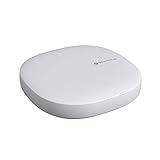
You do not necessarily need a SmartThings Hub – devices already connected to your Wi-Fi network work fine without one. The hub is only required for Zigbee, Z-Wave, or Bluetooth devices that can’t connect directly to Wi-Fi. If you need one, the Samsung SmartThings Hub handles all those protocols.
How to Connect Alexa to SmartThings
The whole process runs through the Alexa app. You’ll need your Samsung/SmartThings account credentials ready.
After device discovery, your SmartThings devices show up in the Alexa app under Devices. You can organize them into Groups (rooms) there, or leave them as-is and just control them by name.
If you want an Echo device to act as the voice interface, the Amazon Echo (4th Gen) is the standard pick – it also has a built-in Zigbee hub, which is handy if you want to run some devices directly through Echo without SmartThings involved.
Controlling Which Devices Alexa Can Access
By default, Alexa gets access to all your SmartThings devices when you authorize the skill. To restrict access to specific devices, go into the SmartThings app, tap Automation, then Amazon Alexa. Toggle off the “allow access to all devices” option – a list of individual devices appears and you can enable or disable each one by checkbox.
Troubleshooting
Before anything else: reboot your SmartThings hub and your Wi-Fi router. That clears the majority of connectivity issues without any further steps.
Alexa Is Not Discovering SmartThings Devices
- Check that the SmartThings skill is still enabled in the Alexa app – go to Skills & Games, then Your Skills. If it shows as disabled, re-enable it and re-authorize.
- If you have multiple SmartThings locations set up, try removing the location and re-adding it in SmartThings, then re-link the Alexa skill.
- Power-cycle the individual device that is not showing up, then run device discovery again.
- Confirm the device is visible and responsive inside the SmartThings app first – if SmartThings can’t see it, Alexa won’t either.
SmartThings Skill Shows as Unresponsive
- Disable the SmartThings skill in Alexa, wait 30 seconds, re-enable it, and authorize again.
- Check the SmartThings app for any service outage notifications – Samsung occasionally has backend issues that affect the Alexa integration temporarily.
- If individual devices show as unresponsive, try removing them from Alexa and running discovery again.
Alexa Routines With SmartThings Devices Not Working
If an Alexa Routine is failing, check whether it includes a device that Alexa does not support in Routines – specifically locks, garage door openers, cameras, and security systems. Alexa Routines only support lighting and thermostats. Move those automation steps into a SmartThings Routine instead.
SmartThings Routines vs. Alexa Routines
Both platforms have a “Routines” feature, and they serve different purposes. Knowing which to use saves a lot of frustration.
Alexa Routines are best for voice-triggered sequences. Say “Alexa, good night” and it dims the lights, adjusts the thermostat, and plays white noise. They’re triggered by voice commands, schedules, or Alexa Guard events. The limitation: Alexa Routines only support lights and thermostats from SmartThings. Locks and other security devices are excluded.
SmartThings Routines are more powerful for device-based automation. They can trigger based on sensor states (motion detected, door opened, presence), time of day, or device status. They support locks, security devices, and the full range of SmartThings-compatible hardware. If your automation needs to involve a lock, a contact sensor, or anything security-related, build it in SmartThings.
The practical split: use Alexa Routines for anything voice-activated, use SmartThings Routines for anything sensor- or event-driven. SmartThings Scenes (pre-set device states you can save and activate) work with both – you can trigger a SmartThings Scene via an Alexa voice command once the integration is active.
What About Matter?
If you have Matter-compatible devices, you can connect them to both SmartThings and Alexa simultaneously using Matter’s multi-admin feature – no need to choose one ecosystem. Each platform can control the device independently. SmartThings has been aggressive about adopting new Matter versions, while Amazon has moved more slowly, but both support Matter devices as of 2026. For non-Matter devices, the standard Alexa skill integration described above is still the way to go.