

This post contains affiliate links. If you buy through them, DumbSwitches may earn a commission at no extra cost to you. See our full disclosure.
HomeKit Secure Video is Apple’s privacy-first approach to home security cameras. Instead of sending raw footage to a corporate server for processing, your camera streams to a HomePod or Apple TV on your local network, that device analyzes it on-device, and only then does encrypted video get uploaded to your iCloud account. Apple never sees it. Nobody else does either.
It works through the Home app on iPhone, iPad, Mac, and Apple TV – and it’s included with any iCloud+ subscription. No separate subscription, no extra app.
How HomeKit Secure Video Works
The key difference from a standard cloud camera is where the analysis happens. Most cameras upload footage to a vendor’s servers first, then the server decides whether it was a person, a cat, or a plastic bag in the wind. With HSV, that analysis runs locally on your home hub – a HomePod mini, HomePod, or Apple TV 4K.
Once the clip is analyzed, it gets end-to-end encrypted and pushed to iCloud. Apple’s servers only ever see encrypted data. The clips stay accessible for 10 days, don’t count against your iCloud storage quota, and can only be viewed by you (and anyone you explicitly share access with).
The system can differentiate between people, pets, and vehicles – not just “motion detected.” Rich notifications tell you what triggered the recording before you even open the app.
What You Need to Get Started
Three things are required:
- A compatible camera – not all HomeKit cameras support Secure Video. See the table below.
- A home hub – HomePod mini, HomePod, or Apple TV 4K. This device does the on-device processing. An always-on iPad no longer qualifies as a home hub as of iOS 16.
- An iCloud+ subscription – the free iCloud tier doesn’t include HSV. Any paid iCloud+ plan does. The tier you’re on determines how many cameras you can run simultaneously.
iCloud+ Plan Limits
The camera count, not the storage size, is what actually gates you here – HSV clips don’t eat into the quota you’re using for photos and backups. Apple’s own numbers, current as of 2026:
| iCloud+ Plan | Price | HKSV Cameras Supported |
|---|---|---|
| 50 GB | $0.99/mo | 1 camera |
| 200 GB | $2.99/mo | Up to 5 cameras |
| 2 TB and above | $9.99/mo | Unlimited cameras |

Setting Up HomeKit Secure Video
Install your compatible camera and add it to Home
Open the Home app, tap the + icon, and scan the HomeKit setup code on your camera. The camera needs to be on the same Wi-Fi network as your home hub.
Confirm your home hub is active
In the Home app, go to Settings > Home Settings. Under Home Hubs you should see your HomePod or Apple TV listed as Connected. If it shows Not Connected, check that the device is powered on and signed into the same Apple ID.
Enable recording in camera settings
Tap on your camera in the Home app, then tap the settings gear. Under Recording Options, choose whether to record when you’re Home, Away, or Always. You can set different rules for different cameras.
Set up activity zones
In the camera settings, select Activity Zones. Draw the areas in the camera frame you actually want monitored – front door, driveway, patio. The camera ignores motion outside the zones, which cuts down on noise from passing cars and neighborhood movement.
Configure face recognition notifications
Go to camera settings and enable Face Recognition. HSV can match detected faces against your Apple Photos library – if someone it recognizes shows up, the notification says who it is. Unknown faces trigger a generic person alert.
Review footage in the Home app
Tap your camera tile, then tap the timeline icon. Use the calendar to navigate to a specific day. Clips are stored for 10 days. You can pinch-to-zoom on playback and share clips directly from the Home app.
What It Can Do
Beyond basic motion recording, HSV has a decent feature set built in:
- Activity detection: distinguishes between people, pets, and vehicles – not just raw motion.
- Activity zones: define specific areas of the frame to monitor. Ignore the street, watch the driveway.
- Face recognition: matches detected faces against your Photos library and names them in notifications.
- Rich notifications: you see a thumbnail of the event with a label (Person detected, Vehicle detected) before opening the app.
- Automations: trigger other HomeKit devices based on camera events – turn on the porch light when motion is detected, for example.
- Streaming: live view is available in the Home app from anywhere. Invited home members can access the live stream; you control whether they can see historical recordings.
What It Cannot Do
Worth being honest about the limitations before you commit:
- No continuous recording. HSV only records event-triggered clips, not 24/7 footage. If you need continuous recording, you’re looking at a different system.
- 10-day clip limit. Footage older than 10 days is gone. You can save clips manually to your Photos library if you need to keep something.
- No package detection. Unlike Ring or Nest, HSV doesn’t have a dedicated package detection feature. It’ll record someone dropping off a box, but it won’t specifically flag it as a delivery.
- Apple ecosystem only. You need an iPhone, iPad, or Mac to set this up and use it. No Android app, no web portal.
- Hub dependency. If your HomePod or Apple TV loses power or goes offline, recording stops. The camera doesn’t buffer locally.

Compatible Cameras
Not every HomeKit camera supports Secure Video – it’s a separate certification, and the three biggest brands in the space each land on a different answer. Arlo has full HomeKit support – live view, Siri, motion alerts – but no HSV certification at all; recordings stay on Arlo’s own cloud and need an Arlo Secure subscription to keep past 30 seconds. Eufy has HSV on part of its lineup, but not the current flagship – and not on any camera paired to its newer HomeBase 3 hub, regardless of model. Aqara skips the distinction entirely and builds HSV support directly into its camera hubs. Brand name alone doesn’t tell you what you’re getting – the specific model does, which is why the table below is organized by model, not just by manufacturer.
| Brand / Model | HKSV Support | What’s Required |
|---|---|---|
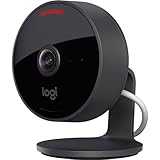
| Logitech Circle View | Yes | Built exclusively for HomeKit. No separate camera hub – just a home hub. The most plug-and-play HSV option on the market. |
| Eufy eufyCam 2 / 2C / 2 Pro / 2C Pro | Yes | Requires HomeBase 2. HomeBase 3 does not carry HKSV for these models. |
| Eufy Indoor Cam 2K / Indoor Cam Pan & Tilt 2K | Yes | Requires HomeBase 2, wired. |
| Eufy eufyCam S3 Pro | No | Eufy’s current 4K flagship. Pairs to HomeKit for live view and notifications only – clips record to HomeBase 3, not iCloud. |
| Eve Cam / Eve Outdoor Cam | Yes | Built specifically for Apple’s ecosystem, no bridge needed. |
| Netatmo Smart Outdoor Security Camera | Yes | Also runs on-device AI locally on top of HSV. No subscription required for basic use. |
| Aqara Camera Hub G3 / G5 Pro | Yes | The hub itself is the camera – no separate bridge required for HSV. |
| Arlo (all current models) | No | Full HomeKit control via an Arlo SmartHub, but no HSV certification. Recordings go to Arlo’s own cloud, which needs an Arlo Secure subscription. |
| Wyze (all models) | No | No native HomeKit of any kind. A Homebridge workaround can get the feed into the Home app, but it doesn’t restore HSV’s encryption or iCloud storage. |
| Ring (all models) | No | No Matter or HomeKit certification on any current Ring device. |
| Blink (all models) | No | Amazon-owned, same story as Ring. |
| Google Nest cameras | No (native) | No Matter support, no official HomeKit path. The homebridge-google-nest-sdm plugin or a Starling Home Hub can add HKSV unofficially. |
For the full brand-by-brand rundown across every device category, not just cameras, see our HomeKit Compatible Devices list. For a deep dive on Eufy’s HomeKit compatibility specifically – including what shipped promising Apple Home support in 2026 and never delivered it – see our guide: Does Eufy Work With Homekit?
Common Pitfalls
The camera works, the hub is online, and clips still don’t show up. Usually it’s one of these five things.
- No home hub, or the wrong one. HSV needs a HomePod mini, HomePod, or Apple TV 4K running 24/7. An iPad hasn’t qualified as a home hub since iOS 16 – if that’s what you’re relying on, recording silently stops working.
- Recording isn’t switched on per camera. Adding a compatible camera to Home doesn’t turn on HSV by itself. In camera settings, under Recording Options, you need Allow Recording set – and it’s a per-camera toggle, so a second camera you add later needs the same step repeated.
- The iCloud+ tier is maxed out. The camera count is the limit, not storage space. Add a sixth camera on the 200 GB plan and it simply won’t record until you upgrade to 2 TB – there’s no warning in the Home app, the clip just never arrives.
- Wi-Fi band mismatch on bridge-based cameras. Hubs like Eufy’s HomeBase 2 are 2.4 GHz only. If your camera won’t show up when you tap Add Accessory, check that your phone is on the same 2.4 GHz network during pairing, not a 5 GHz-only band.
- Same brand, wrong model. Buying “the new one” isn’t safe to assume. Eufy’s older eufyCam 2 family gets HKSV; its current S3 Pro flagship doesn’t. Check the specific model against the table above, not just the logo on the box.
None of these are exotic failures – they’re the five things that come up over and over in setup threads for HomeBase, SmartHub, and every other bridge-style hub on this list. Work through them in order before you assume the camera or the hub is defective. In practice it almost never is.
Frequently Asked Questions
Does Arlo Work With HomeKit Secure Video?
No. As of 2026, Arlo cameras do not support HomeKit Secure Video. Arlo has its own subscription-based cloud platform and hasn’t added HSV certification. If you’re deep in the Apple ecosystem, Eufy, Logitech, or Eve are the better choices.
How Much Does HomeKit Secure Video Cost?
The video storage itself is free with any iCloud+ subscription – it doesn’t count toward your storage limit. iCloud+ plans start at $0.99/month for 50 GB (1 camera) and $2.99/month for 200 GB (up to 5 cameras). You still need to buy a compatible camera, which typically runs $80-$200 depending on the model.
Can I Use an iPad as a Home Hub for HomeKit Secure Video?
No. Apple removed iPad as a home hub option in iOS 16. You need a HomePod mini, HomePod, or Apple TV 4K for HSV to work. The hub needs to be running 24/7 for recording to happen reliably.
Does Wyze Work With HomeKit Secure Video?
No. Wyze cameras don’t support HomeKit Secure Video. Wyze has its own cloud subscription. If you want affordable HomeKit-compatible cameras, look at Eufy or Aqara instead.
Does Ring or Blink Work With HomeKit Secure Video?
No. Both are Amazon-owned and neither has any Matter or HomeKit certification on current devices, so there’s no HSV path – native or otherwise.