This post contains affiliate links. If you buy through them, DumbSwitches may earn a commission at no extra cost to you. See our full disclosure.
Kasa plugs are solid hardware, but they do go offline, refuse to pair, or show mystery light colors at the worst possible times. This guide covers every common failure mode – what the LED is actually telling you, how to fix Wi-Fi issues, what to do after a router change, and when a reset is the right call vs. overkill.
What Your Kasa Plug’s LED Is Telling You
The LED on your Kasa plug is a diagnostic tool. Here’s the decoder:
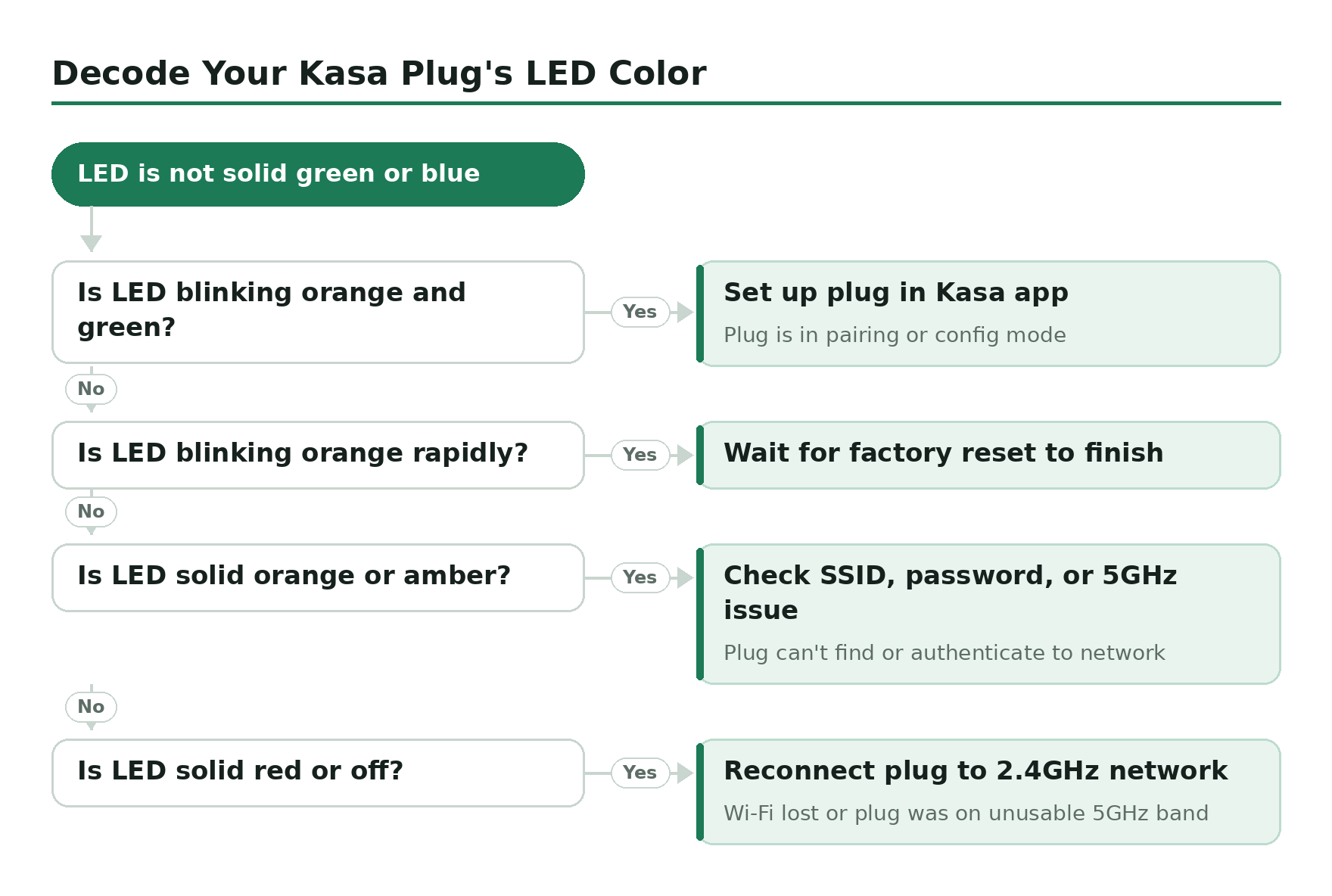
- Solid green or blue – connected and working normally.
- Blinking orange and green – pairing/config mode, waiting for you to set it up in the Kasa app.
- Blinking orange rapidly (amber) – factory reset in progress, or the plug just completed one.
- Solid orange or amber – trying to connect to Wi-Fi but failing, or no network found. Wrong SSID, wrong password, or a 5 GHz issue.
- Solid red or no LED response – Wi-Fi connection lost, or the plug was connected to a 5 GHz band it can’t actually use. Kasa plugs are 2.4 GHz only.
The solid orange is the one that confuses most people. It’s not a hardware failure – it means the plug knows it should be connected somewhere but can’t find or authenticate to the network.
Kasa Plug Offline or Showing in App as Unavailable
Plug showing “offline” in the Kasa app doesn’t always mean something is broken. Start with the cheapest fix first.
Unplug and replug the Kasa plug
Pull it from the outlet, wait 10 seconds, plug it back in. Give it 30 seconds to reconnect. This clears a DHCP renewal issue where the plug lost its IP lease and can’t re-acquire it.
Reboot your router
Router reboots clear a lot of offline ghosts. Power cycle it fully – not just a soft reboot – and wait 2 minutes before checking the plug.
Check Wi-Fi signal strength in the Kasa app
Open the Kasa app, tap the device, tap the gear icon, then Device Info. The RSSI value tells you signal quality: above -50 dBm is strong, -50 to -70 dBm is acceptable, below -70 dBm and you’re going to see repeated offline events. Move the plug closer to the router or add a Wi-Fi extender.
Check for firmware updates
In the Kasa app, tap Me (bottom right), then Firmware Update. Outdated firmware is a real cause of intermittent offline behavior – TP-Link pushes fixes regularly.
Disable Band Steering or Smart Connect on your router
If your router uses Band Steering, Smart Connect, or Wi-Fi Optimizing, it may be pushing the Kasa plug onto the 5 GHz band it can’t use. Disable these features in your router admin panel. Check your router’s manual for the specific setting name.
The 5 GHz Problem (This Bites More People Than It Should)
All Kasa smart plugs – every model, including the newer KP125M with Matter support – are 2.4 GHz only. They will not connect to a 5 GHz network, full stop.
The tricky part is dual-band and mesh routers that use a single SSID for both bands. Your phone may be on 5 GHz when you try to set up the plug, which causes the setup to fail even though your phone shows it’s “connected to the same network.” The fix: temporarily disable the 5 GHz band on your router during setup, or create separate SSIDs (e.g., “HomeNetwork” for 2.4 GHz and “HomeNetwork_5G” for 5 GHz) so you can point your phone at the 2.4 GHz one explicitly.
Per TP-Link’s own guidance, setting your 2.4 GHz network to channel 1, 6, or 11 and channel width to 20 MHz also reduces connection friction during setup.
Plug Won’t Reconnect After a Router Change
Kasa plugs remember one Wi-Fi network: the one they were set up on. Change your router, change your SSID or password, and the plug is stranded. It will not auto-reconnect. You have two options depending on how much configuration you want to preserve.
Option A – Soft reset (keeps schedules and automations)
Press and hold the button for 5 seconds until the LED blinks amber and green. This puts the plug back into setup mode without wiping your settings. Open the Kasa app and reconnect it to your new network.
Option B – Factory reset (clean slate)
Press and hold the button for about 10 seconds until the LED blinks amber rapidly. All settings are erased. Set the plug up from scratch in the Kasa app as if it were new.
Reconnect via Kasa app
After either reset, open the Kasa app, tap the + icon to add a device, select your plug model, and follow the on-screen steps. Make sure your phone is on 2.4 GHz during this process.
For a deeper walkthrough on reset types and when each makes sense, see the full guide on how to reset a Kasa smart plug.
Matter Devices (KP125M): Extra Steps After a Router Change
If you have a Matter-compatible plug like the KP125M paired with Apple Home, Alexa, or Google Home via Matter, a router change means re-pairing in each platform separately. Matter controllers don’t automatically follow a plug to a new network – you’ll need to remove and re-add the device in each ecosystem after reconnecting it to the Kasa app first.
This is more friction than standard Wi-Fi plugs, and it’s worth knowing going in. The Kasa app connection comes first; the Matter re-pairing is second.
Plug Won’t Respond to Alexa or Google Home
Voice assistant stopped working but the plug still works fine in the Kasa app? The skill or integration disconnected. This happens after router changes, password resets, or TP-Link account reauthorization.
For Alexa: open the Alexa app, go to Skills & Games, search for Kasa, and re-link your account. For Google Home: open the Google Home app, go to Works with Google, find TP-Link Kasa, and reconnect. For a full step-by-step, see how to connect a Kasa smart plug to Alexa.
Power Issues: No Power, Hot Plug, Tripped Breaker
If the plug has no power at all (no LED, nothing), it’s almost never the plug itself. Work through the physical possibilities first.
- Check the circuit breaker – find the breaker for that outlet and confirm it hasn’t tripped. Reset it if it has.
- Try a different outlet – the outlet itself may be faulty or switched off. Plug something else in to test it.
- Check for a loose connection – the plug should seat firmly. A partial connection causes intermittent power behavior.
If the plug is getting noticeably hot to the touch, unplug it immediately. A warm plug under load is normal; a hot plug at idle is not. Contact TP-Link support at that point – don’t keep using it.
Energy Monitoring Shows 0W (KP115 / KP125M)
Known bug on the KP115 and sometimes the KP125M: the energy monitoring dashboard reports 0W even when a device is actively drawing power. The fix is to unplug the Kasa plug from the wall and plug it back in. This resets the energy monitoring sensor. If the 0W reading persists after that, check for a firmware update – TP-Link has patched this in several firmware revisions.
Note: the KP125M also does not expose energy data through the Matter protocol to third-party platforms like SmartThings or Home Assistant – that’s a Matter spec limitation, not a bug. The energy data is available in the Kasa app regardless.
When a Full Factory Reset Is the Right Call
A factory reset makes sense when: the plug has been offline for an extended period and soft troubleshooting hasn’t fixed it, you’re moving the plug to a completely different network, or the plug was previously set up by someone else and you want a clean start. It’s not the first thing to reach for – but it does solve a lot of persistent issues that other steps don’t.
A quick reference: 5 seconds for soft reset (setup mode, settings kept), 10 seconds for factory reset (everything wiped). The full reset guide covers model-specific button locations and what to expect after each type.
Still Using Kasa? Here’s the Upgrade.
Kasa smart plugs still work, but TP-Link has been winding the brand down in favor of Tapo. The KP125M is no longer sold new through most major retailers, and older models like the EP25 are fully discontinued.
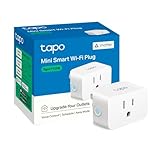
The direct replacement is the Tapo P125M – same compact design, same energy monitoring and scheduling, but with Matter certification added. That means it connects directly to Apple Home, Google Home, or SmartThings without needing a cloud account. If you’re already on the Kasa app, the Tapo app is nearly identical.