

This post contains affiliate links. If you buy through them, DumbSwitches may earn a commission at no extra cost to you. See our full disclosure.
Yes, the Ring Doorbell 2 works with Alexa. Both are Amazon products, so the integration is native – no third-party workarounds needed. You get doorbell announcements through your Echo speakers, two-way talk, and live video on any Echo Show. Setup takes about five minutes.
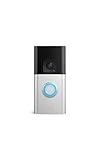
One thing to know up front: Ring discontinued the Doorbell 2 in 2020. If you’re still running one, everything below applies. If you’re shopping for a new unit, the current equivalent is the Ring Battery Doorbell Plus – same battery-powered form factor, better camera (head-to-toe 1536p), same Alexa compatibility.
How To Set Up Ring Doorbell 2 With Alexa
The connection happens through the Ring Skill in the Alexa app. You don’t need to touch the Ring app at all for this part – just the Alexa app on your phone.
Open the Alexa app and tap “More” (three lines, bottom right)
Then select “Skills & Games” from the menu.
Search for “Ring” in Skills & Games
Tap the magnifying glass icon and type Ring. It should appear as the top result.
Tap “Enable Skill and Link Accounts”
This connects your Ring account to Alexa. You’ll be prompted to sign in to your Ring account if you aren’t already.
Tap “Discover Devices”
Alexa scans for Ring devices on your account. Your Ring Doorbell 2 should appear in the list.
Configure your announcement devices
In the Alexa app, go to Devices > All Devices > your doorbell > Doorbell Press Announcements. Enable it, then choose which Echo devices announce when someone rings or motion is detected.
That’s it. The key requirement: make sure your Alexa app is signed in with the same Amazon account you use for Ring. If the accounts differ, device discovery will come up empty.
What You Can Actually Do With Ring + Alexa
Once linked, the integration does three useful things:
Doorbell Announcements
When someone presses your Ring Doorbell 2, any Echo you’ve selected will say “Someone is at the front door.” Same goes for motion detection – you can configure motion announcements separately so you’re not being yelled at every time a squirrel walks past. You control which Echo devices get these announcements, so you can limit it to the kitchen Echo instead of the one in your bedroom at 2am.
Live View on Echo Show
If you have an Echo Show, say “Alexa, show me the front door” and the live camera feed from your Ring Doorbell 2 appears on screen. Works with any Echo Show model. From there you can also activate two-way talk directly from the display.
Echo devices without a screen (Echo Dot, standard Echo) can’t show video – they get audio announcements only. This is a hardware limitation, not a setup issue.
Two-Way Talk
Say “Alexa, answer the front door” to open a two-way audio channel with whoever is at your door. This works on any Echo with a microphone and speaker – you don’t need an Echo Show for audio-only conversations. Useful if you’re in another room and just need to tell the delivery driver where to leave the package.
Alexa Routines
Ring motion detection can trigger Alexa Routines. Practical examples: turn on a porch light when motion is detected at the front door, or have your Echo announce “Motion detected at front door” in a specific room. Set these up in the Alexa app under Routines > + > When This Happens > Smart Home > your Ring device. If you’re also running SmartThings, see our guide to getting Alexa and SmartThings talking to each other.
Which Echo Devices Work With Ring Doorbell 2
Any Alexa-enabled Echo device handles announcements and two-way audio. The screen-equipped Echo Shows add live video. Here are the main options:
Echo Dot (5th Gen)

The Echo Dot (5th Gen) is the entry-level option. It handles announcements and two-way audio with no fuss. No screen, so no live video – but if you just want your Echo to shout “someone’s at the door” while you’re cooking, the Dot does the job at the lowest price point.
Echo Show 5 (3rd Gen)

The Echo Show 5 (3rd Gen) adds a 5.5-inch screen – enough to see who’s at the door without buying a full-size display. Good fit for a nightstand or kitchen counter where you want live view capability without the footprint of the larger Show models.
Echo Show 8 (3rd Gen)

The Echo Show 8 (3rd Gen) is the best all-around pick for Ring integration – the 8-inch screen is big enough to actually see detail in the camera feed, and it doubles as a decent kitchen display. The 3rd gen model (2023) added spatial audio and a built-in smart home hub, which is useful if you’re running other Zigbee devices alongside your Ring setup.
Troubleshooting Ring + Alexa Connection Issues
If Ring isn’t showing up in Alexa or announcements aren’t firing, run through this list:
- Both apps must be signed in to the same Amazon account. This is the most common cause of discovery failures.
- Make sure your Ring Doorbell 2 is online in the Ring app before attempting Alexa setup. A disconnected doorbell won’t appear in Alexa’s device discovery.
- If you already linked the Ring Skill but something stopped working, try disabling and re-enabling the skill in Alexa > Skills & Games > Your Skills. This often clears authentication issues after Ring or Alexa app updates.
- Check that Doorbell Press Announcements is actually enabled per device. It defaults to off – you have to turn it on for each Echo unit you want to receive alerts.
- If live view on Echo Show isn’t working, verify the Ring Skill is enabled (not just that Alexa can see the device). Live view requires the skill connection, not just device discovery.