
This post contains affiliate links. If you buy through them, DumbSwitches may earn a commission at no extra cost to you. See our full disclosure.
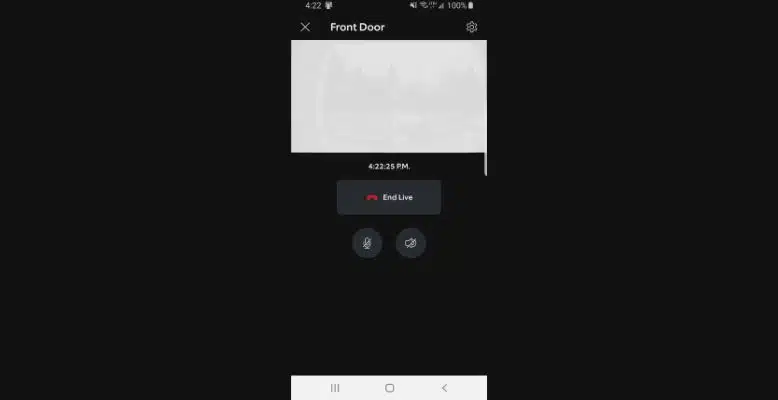
Live View on the Ring Doorbell 2 is free – no subscription required. Open the Ring app, tap the camera thumbnail on your dashboard, then tap the Live View button. That’s it. You get a real-time video feed with two-way audio, and it runs for up to 10 minutes before timing out automatically.
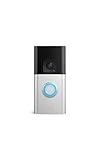
Quick note before we get into it: Ring discontinued the Doorbell 2 several years ago. It still works fine and Ring continues to support it with app updates, but it’s no longer sold new. If you’re looking for the current equivalent, the Ring Battery Doorbell Plus is the direct successor – better video quality, wider field of view, longer battery life.
What Live View Actually Does
Live View opens a real-time stream from your doorbell camera on demand. You’re not waiting for a motion alert or a button press – you just open the feed whenever you want to check what’s happening at your door.
The stream includes two-way audio. By default the microphone is muted when Live View opens – tap the mic icon to speak, tap again to mute. The speaker button controls incoming audio from the doorbell’s end. Useful if you want to listen without tipping off whoever’s outside that you’re watching.
Sessions cap at 10 minutes and close automatically. You can restart immediately – it’s a soft limit, not a lockout. If you have a Ring Protect subscription, Extended Live View pushes that to 30 minutes per session.
How to Access Live View on the Ring Doorbell 2
Open the Ring app and sign in
Launch the Ring app on your phone or tablet. Make sure you’re signed into the account associated with the Doorbell 2.
Find your doorbell on the dashboard
The main dashboard shows thumbnail previews of all your Ring devices. Tap the thumbnail image for your Ring Doorbell 2.
Tap the Live View button
A Live View button appears in the camera detail screen. Tap it to start the stream. Give it a few seconds to connect – load time depends on your Wi-Fi signal strength.
Use two-way audio if needed
Tap the microphone icon to unmute and speak. The session runs for up to 10 minutes before closing automatically. Tap the X or navigate away to end it early.
Does Live View Require a Subscription?
No. Live View is free on the Ring Doorbell 2. No Ring Protect plan needed.
What a subscription does buy you is video history – the ability to review recorded clips after a motion event or doorbell press. Without a plan, those clips aren’t saved anywhere. Live View itself (on-demand, real-time streaming) has always been free and stays free. See the full breakdown in our Ring subscription guide.
Live View on Alexa Devices
If you have an Amazon Echo Show, you can pull up Live View with a voice command: “Alexa, show me [your device name].” Ring and Alexa are both Amazon products, so the integration is straightforward – enable the Ring skill in the Alexa app, link your Ring account, and you’re done.
This only works on Echo devices with screens – Echo Show 5, Echo Show 8, Echo Show 10, etc. Echo speakers with no display can’t show a video feed. If you’re using the doorbell without an Echo Show, the Ring app on your phone does the same job.
More on setting this up: Does the Ring Doorbell 2 Work With Alexa?
Live View on Google Home
The Ring Doorbell 2’s Google Home compatibility is limited. While you can link Ring to Google Home and get doorbell press announcements on your Nest Hub, live video streaming via Google Home is unreliable at best – Ring and Google aren’t exactly motivated to make this work perfectly. The voice command is “Hey Google, show me the [device name] camera.”
If a Google Home live video feed matters to you, a Nest Doorbell is the better choice – it’s built for the ecosystem. Ring + Alexa is the combination that actually works well.
Battery Impact of Live View
Live View is a battery killer. Each session streams video continuously, which uses significantly more power than the brief wake-up from a motion event. If you’re checking Live View manually a dozen times a day, expect your battery life to drop fast – weeks instead of months between charges.
If battery drain is already a problem, limit manual Live View checks. Let motion detection do the work and check recordings (if you’re subscribed) rather than opening live streams constantly. The Ring Solar Charger is one way to offset this if you have decent sun exposure – see our Ring Doorbell 2 solar charger guide for options.
Troubleshooting Live View Problems
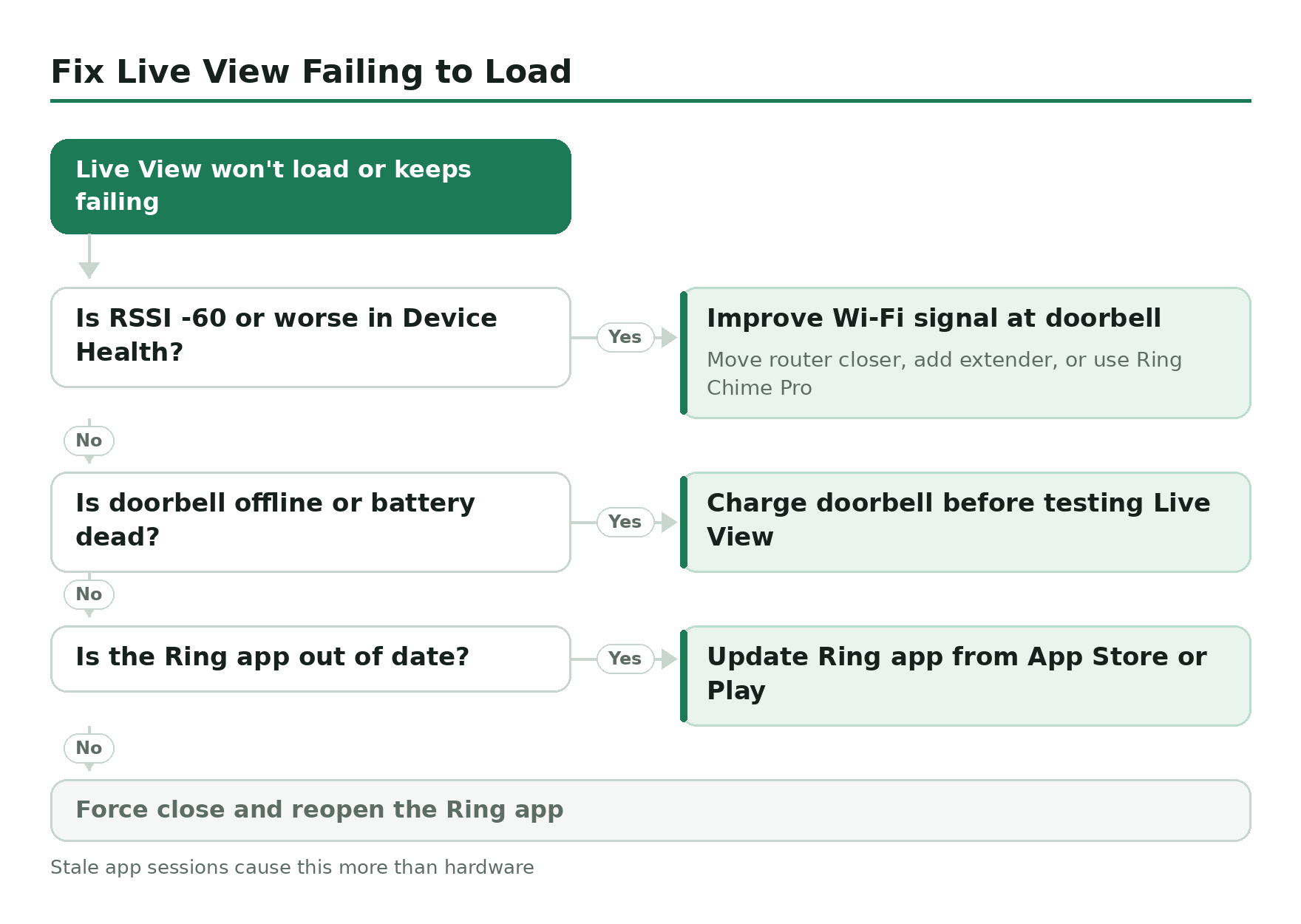
Live View failing or loading slowly almost always points to one of two things: a weak Wi-Fi signal at the doorbell, or a stale Ring app session. Check Device Health first.
Check Your RSSI Signal Strength
In the Ring app: tap the three lines (menu), go to Devices, select your doorbell, then tap Device Health. Look at the Signal Strength reading – it shows as an RSSI value. You want -50 or better (a less negative number). At -60 or worse, Live View will be slow to load, drop out mid-stream, or fail to connect.
Fix: move your router closer, add a Wi-Fi extender, or use a Ring Chime Pro as a dedicated Wi-Fi repeater for Ring devices.
Force Close and Reopen the Ring App
If signal strength looks fine but Live View still won’t connect, force close the Ring app and reopen it. Stale app sessions cause this more often than any hardware issue.
Other Troubleshooting Steps
- Live View won’t activate: Confirm the doorbell has battery charge and shows online in Device Health. If it went offline due to a dead battery, charge it before testing Live View.
- Video is pixelated or choppy: Almost always a signal issue. Check RSSI as above.
- App update required: Check for pending Ring app updates in the App Store or Google Play. Ring occasionally ships fixes that affect Live View reliability.
- Device firmware: Ring firmware updates push automatically over Wi-Fi. If your doorbell has been offline for a while, it may have missed updates. How to check and update Ring Doorbell 2 firmware.
For a complete list of Ring Doorbell 2 issues and fixes, see our Ring Doorbell 2 troubleshooting guide.
RTSP Streaming – Quick Note
The Ring Doorbell 2 doesn’t support RTSP (Real Time Streaming Protocol) natively. Some users have used third-party workarounds to pull a local stream, but Ring doesn’t officially support or document this, and it can break with firmware updates. If local RTSP streaming matters to you, Ring isn’t the right camera for that job.