

This post contains affiliate links. If you buy through them, DumbSwitches may earn a commission at no extra cost to you. See our full disclosure.
A red light on a Blink camera almost always means one of three things: the batteries are dying, the Wi-Fi can’t reach it, or the camera is in setup mode and confused. Which one depends on the model and the exact flash pattern. Here’s how to tell them apart.
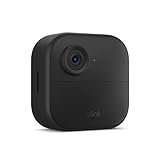
Last updated: May 2026. Verified against Blink’s official support docs, covering the Mini, Mini 2, Mini 2K+, Mini Pan-Tilt, Outdoor 3rd Gen, Outdoor 4, Outdoor 2K+, Indoor, XT2, XT, the Wired and Battery Doorbells, the Wired Floodlight Camera, and the Outdoor 4 Floodlight mount.
The quick decoder
Read this section first. If your specific flash pattern is in here, jump to the matching fix below and skip the rest.
- Quick red flash every 3 seconds (Outdoor 3rd Gen, Outdoor 4, Outdoor 2K+, Indoor, XT2, XT) – the camera is disconnected from the internet.
- 5 or 6 red flashes right after the blue recording light turns off – the AA batteries are nearly dead. Replace both.
- 5 long red flashes then a short flash every 3 seconds (right after inserting batteries) – the camera is starting up and looking for a network. Normal during setup. Wait.
- Flashing red on Blink Mini, Mini 2, or Mini 2K+ – the camera is starting up. Give it 30 seconds.
- Solid red on any Mini – it can’t reach your Wi-Fi, or the password was wrong during setup.
- Flashing red on Blink Outdoor 4 or Outdoor 2K+ during setup – the camera is in setup mode or switching networks. Normal until you finish the setup flow.
- Red LED on a Video Doorbell, Battery Doorbell 2K+, or Wired Doorbell 2K+ button ring – the doorbell is hunting for a connection or sitting in setup.
- Alternating red and blue – you’re in the middle of a hard reset. Let go of the reset button when this starts.
Why the model matters more than the color
Plenty of older guides will tell you a red light means one specific thing. That was true around 2020, when Blink only really sold two cameras. It isn’t true now. The Mini lineup uses a different LED scheme than the battery-powered Outdoor and Indoor models, the Outdoor 4 and 2K+ added a setup-mode flash that didn’t exist before, and the Doorbells have their own ring LED that behaves like neither.
So before you start pulling batteries: figure out which camera you’ve got. The model name is on a sticker on the back, or in the Blink app under the camera’s settings.
Blink Outdoor 3rd Gen, Outdoor 4, Outdoor 2K+, Indoor, XT2, XT
These are the AA-battery cameras most people own. The 2K+ is newer and shoots higher resolution, but the LED behavior is identical to the earlier models.
Quick red flash every 3 seconds
The camera has lost contact with your Wi-Fi or with the Sync Module. Three things to check, in order:
- Is the Sync Module online? Open the Blink app. If the Sync Module shows “offline,” reboot it (unplug, wait 10 seconds, plug back in). If you’ve got the newer Sync Module XR, the same procedure applies.
- Is your router behaving? Reboot it too. You’d be surprised.
- If both look fine and the camera is still flashing red, delete the camera from the Blink app and re-add it. Blink officially recommends this as the fix when the first two don’t work.
5 or 6 red flashes after the blue recording light goes out
The batteries are almost flat. This is the only flash pattern that has a specific count, and it’s the easiest one to fix: replace both AAs with fresh ones at the same time. Mixing old and new batteries doesn’t work – the camera reads voltage off both cells.
Use lithium AAs, not alkaline. Blink officially recommends Energizer Ultimate Lithium. They last roughly three to four times longer in these cameras, especially in cold weather where alkalines collapse early. Buying alkalines to save a few bucks on a camera that’s annoying to climb up and re-battery is a false economy.
5 long red flashes followed by a short flash every 3 seconds
You just put fresh batteries in and the camera is looking for a network. This is normal startup behavior, not a fault. Once it finds the Sync Module and your Wi-Fi, the LED will stop. If it doesn’t stop after about two minutes, treat it as a “disconnected” case (see above).
Blink Mini, Mini 2, and Mini 2K+
The Mini cameras are wired (USB-powered), so battery problems don’t apply. The LED scheme is also completely different from the Outdoor and Indoor models – here’s the full key, which applies across the original Mini, Mini 2, and the 2K+ revision:
- Blinking red – starting up. Give it 30 seconds.
- Solid green plus blinking blue – pairing mode, ready to set up.
- Blinking green – it fell offline and is trying to reconnect.
- Solid red – it cannot reach your Wi-Fi, or you typed the password wrong during setup.
- Solid blue – recording motion or in live view (you can disable this in app settings if it bothers you).
- No LED at all – it’s online and working. Or it’s unplugged. One of those.
The Mini Pan-Tilt and the Blink Arc (which is two Mini 2K+ cameras stitched into one panoramic feed) use the same LED scheme. If you have an Arc, each of the two stitched cameras has its own LED, so check both.
Fixing a solid red on the Mini
- Unplug the camera, wait 10 seconds, plug it back in. About half the time, that’s the whole fix.
- If it’s still solid red after two minutes, press the reset button on the bottom of the camera with a paperclip or SIM tool. Hold until the LED changes. Then set up again from scratch in the Blink app – the camera doesn’t remember the old Wi-Fi config after a reset.
- Double-check your Wi-Fi password before re-entering it. The single most common cause of a solid red on a Mini is a typo at setup. Blink cameras only join 2.4 GHz networks, so make sure you’re connecting to that band and not 5 GHz.
Blink Outdoor 4 and Outdoor 2K+ (setup-mode flash)
Both the Outdoor 4 and the newer Outdoor 2K+ added a behavior the older Outdoors don’t have: a flashing red light when the camera is in setup mode or switching networks. If you just bought it, just moved it to a new house, or just changed your router password, that’s what you’re seeing. It’s normal. Finish the setup flow in the app and the light will stop.
If you’re not in the middle of any of that and it’s flashing red anyway, treat it like the older Outdoor 3rd Gen disconnect behavior – it’s lost contact with the Sync Module or your Wi-Fi, and the remediation is the same.
Blink Doorbells (Video, Battery 2K+, Wired 2K+)
The Doorbells have a ring of LED around the button. A red LED on that ring means the doorbell is searching for a connection – either during initial setup, or after it has lost network contact.
For the battery-powered ones (Video Doorbell and Battery Doorbell 2K+): pull the doorbell off its mount, remove and reinsert the batteries (wait five seconds between), and let it reconnect. For the Wired Doorbell 2K+: flip the breaker for 30 seconds, then turn it back on.
If the red persists, run a hard reset: hold the reset button until the LED starts alternating red and blue, then release. You’ll need to re-add the doorbell in the Blink app afterwards.
The reset that fixes most red lights
If none of the model-specific advice above works and you’ve got a battery-powered Blink camera, the official hard-reset procedure looks like this:
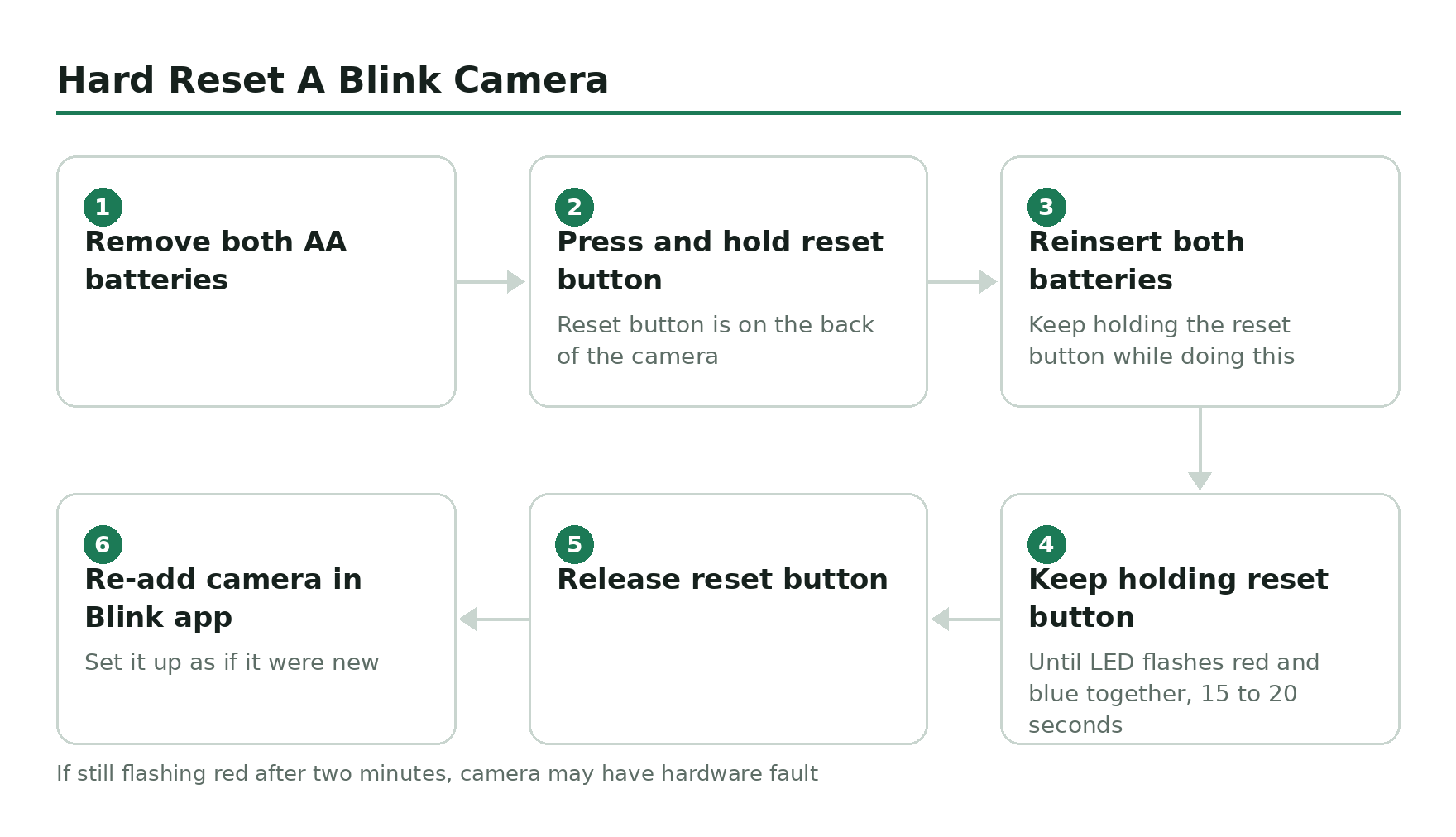
Remove both AA batteries.
Press and hold the reset button on the back of the camera.
While still holding the reset button, reinsert both batteries.
Keep holding the reset button until the LED begins flashing red and blue together. This usually takes 15 to 20 seconds.
Release the reset button.
Open the Blink app and add the camera back to your system as if it were new.
If the camera comes back online after the reset, you’re done. If it sits there still flashing red after about two minutes, the camera itself probably has a hardware fault. Blink’s warranty is two years from purchase – if you’re inside that window, open a support ticket before you do anything else.
Related guides
- What the green light means on a Blink camera – usually a connection attempt, not a problem.