

This post contains affiliate links. If you buy through them, DumbSwitches may earn a commission at no extra cost to you. See our full disclosure.
Yes, Geeni smart bulbs work with Amazon Alexa. You don’t need a hub, a bridge, or any special hardware – just a Geeni account, the Alexa app, and about five minutes.
What You Need
- A Geeni smart bulb (any model – Lux, Prisma, tunable white, or color)
- A Geeni account and the Geeni app installed on your phone
- An Amazon Echo device (any generation – Echo, Echo Dot, Echo Show, etc.)
- The Alexa app on your phone
- A 2.4 GHz Wi-Fi network (Geeni bulbs don’t support 5 GHz)
Your bulb must already be set up and showing as online in the Geeni app before you touch Alexa. Get that sorted first.
How to Connect Geeni Bulbs to Alexa
If you have multiple bulbs, name them something distinct in the Geeni app before you do this – “living room light,” “desk lamp,” etc. Alexa uses those exact names for voice control.
What You Can Control With Alexa
What’s available depends on which bulb you have.
All Geeni bulbs support on/off and dimming by voice. Tunable white models (the Lux line) let you adjust color temperature – warmer or cooler. Color bulbs like the Prisma series add full RGB color control.
- “Alexa, turn on the bedroom light.”
- “Alexa, turn off the bedroom light.”
- “Alexa, dim the bedroom light to 40%.”
- “Alexa, set the bedroom light to green.” (Prisma color bulbs only)
- “Alexa, set the bedroom light to warm white.” (tunable white bulbs)
You can also group bulbs in the Alexa app – put all your living room lights into a group called “living room” and control them with one command.
Once Alexa sees your Geeni bulbs, they’ll also show up as triggers and actions in Alexa Routines. A “Good Night” routine can turn off every Geeni light in the house on one voice command or a schedule, and a “Sunset” routine can turn them on automatically at dusk – useful if you travel and want the place to look lived-in.
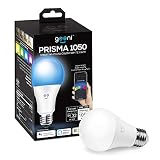
Want a good color bulb to try this with? The Geeni Prisma 1050 is widely available, 75W equivalent, and handles the full color spectrum. If you just need basic dimmable white, the Geeni Lux A21 is the straightforward pick.
One thing Geeni doesn’t do: HomeKit. Alexa and Google Assistant both get official skill support, but Geeni runs on Tuya’s platform under the hood, and Tuya-based devices don’t carry Apple’s HomeKit certification. If Siri control matters to you, you’ll need a bulb from a brand that does – see our full list of HomeKit compatible devices.
Troubleshooting
Alexa Can’t Find Your Geeni Bulb
First check that the bulb is showing as online in the Geeni app – Alexa can only discover devices that are already connected there. If it’s offline in Geeni, fix that first.
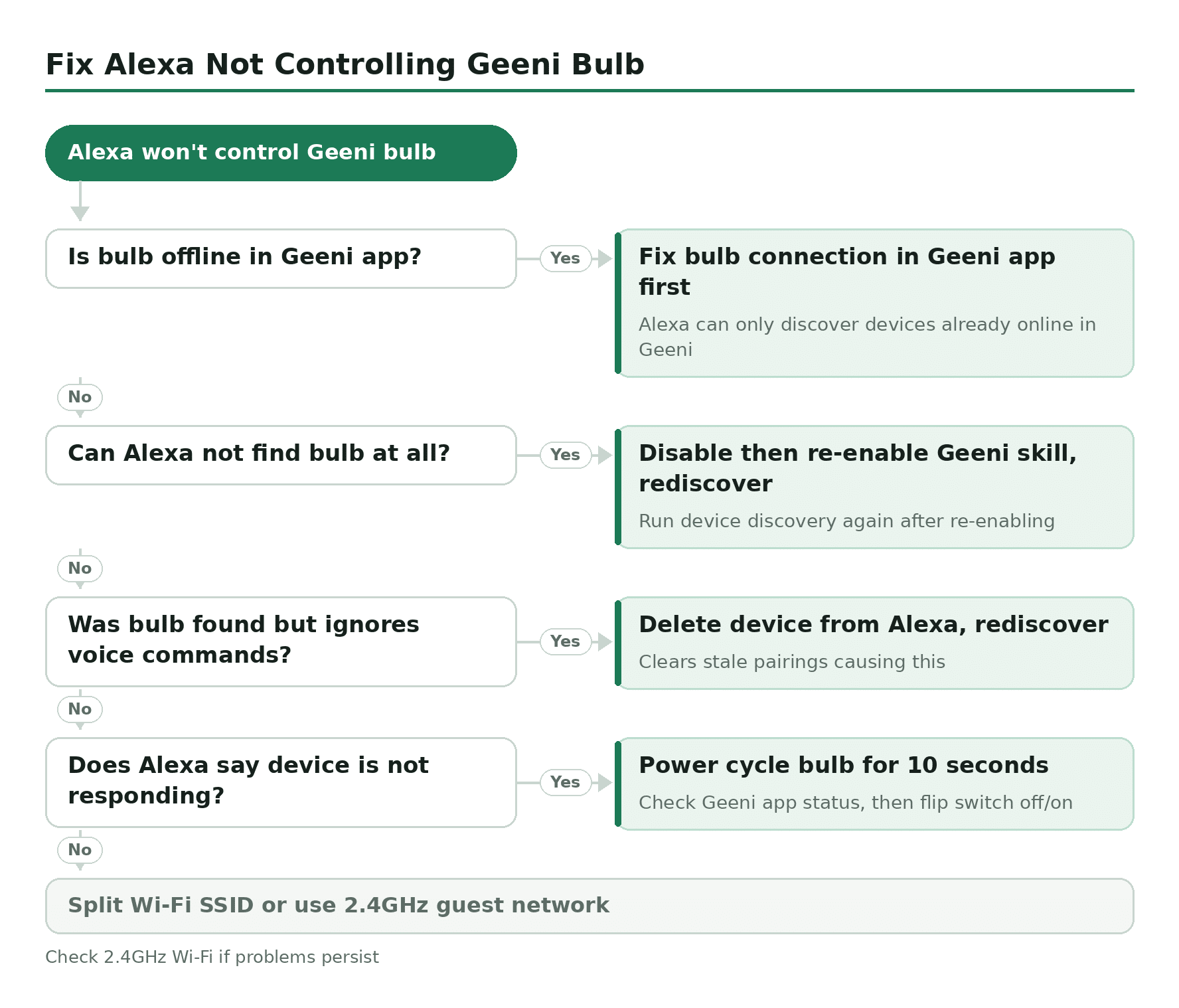
If it’s online in Geeni but Alexa still won’t find it, try disabling and re-enabling the Geeni skill in the Alexa app, then run device discovery again.
Bulb Found But Not Responding to Voice
Delete the device from Alexa’s smart home device list, then run discovery again. That clears stale pairings that can cause this. If it keeps happening, check that your Wi-Fi is 2.4 GHz – Geeni doesn’t work on 5 GHz networks.
Alexa Says “Device Is Not Responding”
This usually means the bulb lost its Wi-Fi connection. Open the Geeni app and check the bulb’s status. If it’s offline, power cycle the bulb (turn the physical switch off for 10 seconds, then on). If it reconnects in Geeni, Alexa should start responding again within a minute or two.
Bulb Won’t Pair on a Mesh Wi-Fi System
Most mesh systems – Eero, Google Nest Wifi, Orbi and similar – broadcast one combined network name and quietly decide which band, 2.4GHz or 5GHz, each device lands on. That “band steering” is convenient for phones and laptops, but it can strand a 2.4GHz-only device like a Geeni bulb: it either can’t find the network during pairing, or it gets bumped to 5GHz and drops offline.
If your router lets you split the SSIDs (most standalone routers do, under the wireless settings), turn off band steering and give the 2.4GHz band its own name, at least during setup. If it’s a mesh system that won’t let you split the main network, most of them let you create a separate guest network – set that guest network to 2.4GHz only, pair the bulb on it, and it will stay reachable there without interfering with your main Wi-Fi.