

This post contains affiliate links. If you buy through them, DumbSwitches may earn a commission at no extra cost to you. See our full disclosure.
Home Assistant wins on device compatibility, local control, and long-term flexibility. Apple HomeKit wins on simplicity, polish, and Siri integration. The right pick depends almost entirely on how much setup work you’re willing to do.

What Is Home Assistant?
Home Assistant is a free, open-source home automation platform that runs locally on your own hardware – a Raspberry Pi, a dedicated box like the Home Assistant Green, or any Linux machine you have lying around. Nothing goes through a third-party cloud. Your data stays in your house.
As of 2026.5, it supports over 3,000 integrations – Zigbee, Z-Wave, Matter, Thread, Wi-Fi, Bluetooth, IR, RF, you name it. If a smart home device exists and has any kind of API or protocol, someone has probably written a Home Assistant integration for it.
Home Assistant also has its own voice assistant, called Assist, so it doesn’t need Siri, Alexa, or Google to talk to. Assist runs the natural-language processing locally by default; if you add Nabu Casa’s optional cloud subscription, the speech-to-text and text-to-speech steps offload to Nabu Casa’s servers while everything Assist actually does in your home still runs on your own hardware. Nabu Casa also handles remote access and cloud backups for anyone who doesn’t want to set up port forwarding themselves.
The catch: you need to install it, configure it, and maintain it. That’s not a complaint, just a fact. If that sentence makes you anxious, HomeKit might be a better fit.
What Is Apple HomeKit?
HomeKit is Apple’s smart home platform, baked into iOS and macOS. You control everything through the Home app or Siri, and it works well – provided every device you buy carries the HomeKit logo. The experience is tight, fast, and requires almost no setup beyond scanning a QR code.
As of February 2026, Apple retired the old HomeKit architecture entirely. iPads can no longer act as home hubs – that job now falls exclusively to HomePod mini, HomePod (2nd gen), or Apple TV 4K. Those devices also act as Thread border routers for Matter accessories.
HomeKit is free as long as you already own Apple hardware. If you don’t, you’re buying in.
Matter Support: Both Have It Now
Matter is the smart home interoperability standard that lets devices from different ecosystems talk to each other. Both platforms support it fully in 2026, which meaningfully changes the old compatibility calculus.
A Matter-certified lock, thermostat, or light bulb can be added to either Home Assistant or HomeKit (or both simultaneously). Home Assistant 2026.1 moved Matter and Thread settings to the top level of the Settings menu, making it easier to add Matter devices. HomeKit uses HomePod mini or Apple TV 4K as Thread border routers for Matter-over-Thread accessories.
The practical difference: Home Assistant tends to get new Matter device categories faster – its 2026 releases added support for robot vacuum service areas, radon sensors, carbon monoxide alarms, and smart lock PIN management ahead of HomeKit’s rollout. See our guide to smart home automation protocols for more on how Matter fits into the broader picture.
Home Assistant vs HomeKit: The Decision Framework
Skip the feature checklist and compare the five things that actually determine which platform fits a given household:
| Category | Home Assistant | Apple HomeKit |
|---|---|---|
| Setup effort | High – flash and configure your own hub (Raspberry Pi, Home Assistant Green, or Yellow), complete onboarding, add every integration by hand | Low – buy an Apple TV, HomePod mini, or HomePod as a hub, scan a code, done |
| Device support | 3,000+ integrations across nearly every protocol – Zigbee, Z-Wave, Matter, Wi-Fi, Bluetooth, IR, RF – plus non-Matter and DIY hardware Apple never certifies | Devices certified for HomeKit, plus anything Matter-certified. A smaller pool, gated by Apple’s certification program |
| Privacy | Fully local by default; nothing leaves your network unless you opt into Nabu Casa’s cloud for remote access or Assist’s cloud voice processing | Mostly local via your hub, but some Siri requests and iCloud-dependent features route through Apple’s servers |
| Automation depth | Deep – multi-step sequences, template conditions, external service calls, and a full scripting/automation editor | Basic – triggers, conditions, and simple if-this-then-that logic through the Home app, no scripting layer |
| Cost | Free core software; you pay for hub hardware and, optionally, a Nabu Casa subscription for remote access and cloud voice | Free if you already own qualifying Apple hardware; a hub is required if you don’t |
Both support Matter as of 2026, and neither charges a subscription for basic function – Nabu Casa’s cloud is optional on the Home Assistant side, and a HomePod or Apple TV is only required once you want remote access, automations, or Thread on the HomeKit side.
Advantages of Home Assistant
Device support is the big one. HomeKit requires manufacturers to go through Apple’s certification program, which limits the pool. Home Assistant works with pretty much anything – including older non-Matter devices, budget Zigbee hardware, and DIY sensors. If you’re comparing protocols, our Z-Wave vs Zigbee vs Wi-Fi guide covers what each protocol is actually good for.
Automation depth is the other major edge. Home Assistant’s automation engine is genuinely powerful – multi-step sequences, template conditions, time-based triggers, integration with external services. HomeKit automations are fine for basic stuff (turn off the lights when everyone leaves) but hit a ceiling fast.
And the privacy argument is real. Nothing in Home Assistant needs to leave your network. No account, no telemetry, no vendor shutting down a cloud service and bricking your setup.
Advantages of Apple HomeKit
It just works. You buy a HomeKit device, scan the code, and it appears in the Home app. No YAML files, no integration configs, no driver troubleshooting. For someone who wants a smart home and not a hobby project, that matters.
Siri integration is native and tight. “Hey Siri, turn off the living room lights” works instantly from Apple Watch, iPhone, AirPods, or HomePod – no latency, no third-party bridge. Home Assistant can expose devices to Siri via a HomeKit bridge integration, but it’s one extra config layer.
Security is Apple-grade end-to-end encryption throughout. HomeKit Secure Video processes camera footage locally on your hub before anything touches iCloud. If you’re in the Apple ecosystem already, the barrier to entry is essentially zero.
Does Home Assistant Work With HomeKit?
Yes – and this is genuinely useful. Home Assistant includes a HomeKit Bridge integration that exposes your HA devices to the Apple Home app. You get the best of both: Home Assistant’s broad device support and automation engine on the backend, Siri and the Home app as the front end.
The reverse also works. HomeKit-only devices can be pulled into Home Assistant via the HomeKit Device integration, so you’re not locked out of anything in either direction. The Hubitat HomeKit integration follows the same bridging logic if you’re coming from that platform.
How to Set Up Home Assistant With HomeKit Bridge
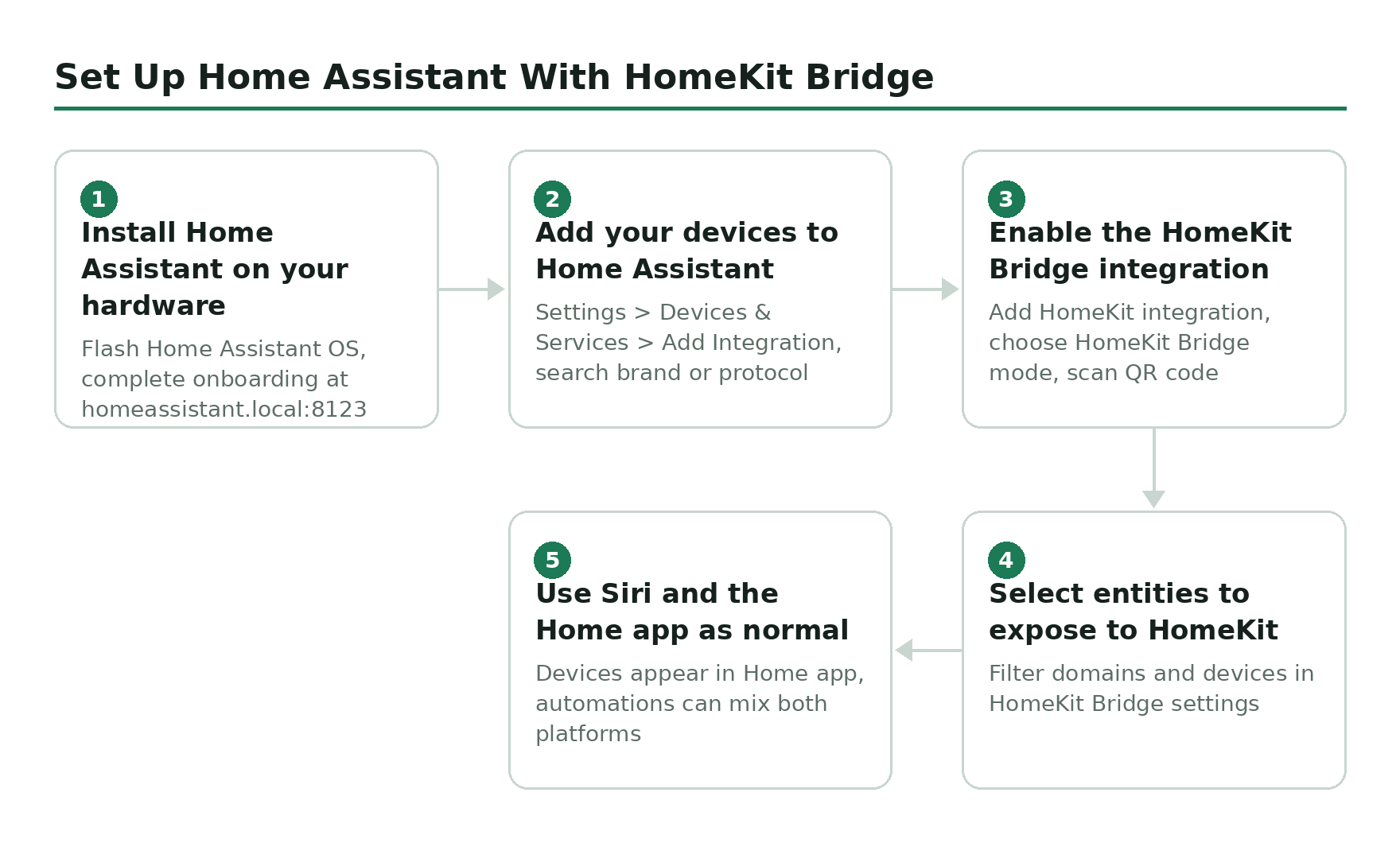
Install Home Assistant on your hardware
Flash Home Assistant OS to a Raspberry Pi 4, Home Assistant Green, or any compatible device. The official installer at home-assistant.io handles the image. Boot it up and complete the onboarding wizard at homeassistant.local:8123.
Add your devices to Home Assistant
Go to Settings > Devices & Services > Add Integration. Search for your device brand or protocol (Zigbee, Z-Wave, Matter, etc.). For Matter devices, you’ll need a Thread-capable USB dongle like the Home Assistant Connect ZBT-1 (~$30) or a Yellow/Green with built-in radio.
Enable the HomeKit Bridge integration
In Settings > Devices & Services, add the HomeKit integration. Choose ‘HomeKit Bridge’ mode. It generates a QR code that you scan with the iPhone Home app to pair Home Assistant as a HomeKit hub.
Select which entities to expose to HomeKit
Not every HA entity maps cleanly to HomeKit. In the HomeKit Bridge settings, filter which domains and devices get exposed. Lights, locks, sensors, and climate devices work well. Custom virtual entities may need manual type assignment.
Use Siri and the Home app as normal
Once paired, your Home Assistant devices show up in the Apple Home app alongside any native HomeKit accessories. Siri commands work instantly. Automations can mix both platforms – a native HomeKit motion sensor triggering a Home Assistant script, for instance.
Which Should You Choose?
Choose Home Assistant if: you want to control devices from any brand without worrying about certification logos, you care about your automations running locally with no cloud dependency, or you’re the kind of person who enjoys configuring things. It’s also the practical pick for a mixed-phone household, since its HomeKit bridge covers the Apple side while Android users get a normal path in – see our guide on getting HomeKit devices working from an Android phone.
Choose HomeKit if: you’re deep in the Apple ecosystem and want everything to just work, you prefer a polished app over raw flexibility, or you need Siri to be the primary interface (Apple Watch users especially).
The honest answer for most people with a mixed device collection: run both. Use Home Assistant as the backend for everything, bridge it to HomeKit for Siri access, and get the best of each without giving anything up.