

This post contains affiliate links. If you buy through them, DumbSwitches may earn a commission at no extra cost to you. See our full disclosure.
Plug it in, open the Kasa app, tap the + button, scan the QR code on the plug, connect to your 2.4 GHz Wi-Fi network, and you're done. Standard Kasa plugs take about two minutes. If you have a Matter-compatible plug (KP125M, EP40M), you get a second option: set it up directly through Apple Home, Google Home, or Alexa instead. Either way, the process is shorter than reading the box.
Standard vs. Matter: Which Kasa Plug Do You Have?
Kasa sells two categories of plug right now. Knowing which one you have determines your setup path.
- Standard Wi-Fi plugs (KP115, KP125, EP25, HS103, and most of the lineup) – Kasa app only. No Matter. Solid choice if you live in the Kasa ecosystem.
- Matter-compatible plugs (KP125M, EP40M, EP10) – Can be set up via the Kasa app OR directly through Apple Home, Google Home, Alexa, or Samsung SmartThings as a Matter accessory.
The KP125M is the current flagship – slim design, energy monitoring, and full Matter support. If you're buying new, it's the one to get.
One thing that trips up almost everyone: all Kasa plugs are 2.4 GHz only. They will not connect to a 5 GHz network, period. If your router broadcasts both frequencies under the same SSID (common with newer mesh routers), Kasa plugs can struggle to join the right band. More on that in the troubleshooting section.
Standard Kasa App Setup
This covers every Kasa plug via the Kasa app. Works on iOS and Android, including tablets.
Download the Kasa app
Available free on the App Store and Google Play. Sign in or create a TP-Link account – you need one either way.
Plug your Kasa plug into a wall outlet
The LED should start blinking orange/amber, which means it’s in pairing mode. If it’s not blinking, hold the button on the plug for about 5 seconds until it does.
Tap the + button in the Kasa app
Top right corner of the home screen. Select Smart Plugs from the device category list, then pick your specific model.
Scan the QR code on the plug
Point your phone camera at the QR code printed on the plug label. The app reads it automatically – no manual code entry needed. If scanning fails, you can enter the code manually.
Connect to your 2.4 GHz Wi-Fi network
The app will ask for your Wi-Fi password. Make sure you select your 2.4 GHz network – not the 5 GHz one. They usually show as separate SSIDs on older routers, or the same SSID on mesh systems.
Name your device
Give it something descriptive – ‘Office Lamp’ or ‘Coffee Maker’ beats ‘Smart Plug 1’. You’ll thank yourself when you have six of these.
Update firmware if prompted
If an update is available, install it before using the plug. Takes about 60 seconds and the plug reboots automatically.
Matter Setup (KP125M, EP40M)
Matter-compatible Kasa plugs have a second setup option: skip the Kasa app entirely and add the plug directly to Apple Home, Google Home, Alexa, or Samsung SmartThings. The plug talks to your chosen ecosystem natively – no TP-Link account required.
One important limitation: energy monitoring does not pass through Matter. If you want to track wattage and usage data on the KP125M, you need the Kasa app. Energy monitoring is Kasa-only regardless of how you set the plug up.
Open your Matter controller app
Apple Home, Google Home, Amazon Alexa, or Samsung SmartThings all support Matter. Open whichever you use.
Start adding a new accessory
In Apple Home: tap the + icon, then Add Accessory. In Google Home: tap Add, then Set up device, then Matter-enabled device. In Alexa: tap Devices, then +, then Add Device.
Plug in the KP125M or EP40M
The LED should blink, indicating pairing mode. If not, hold the button for 5 seconds to reset it.
Scan the Matter QR code
The QR code is on the plug label. Your phone camera reads it and kicks off the pairing process automatically.
Assign to a room and name the device
Follow the prompts in your chosen app. The plug will appear in your ecosystem just like any other Matter accessory.
First-Time Tips: Schedules, Energy Monitoring, and Voice Control
Schedules and Timers
Schedules let you automate on/off on specific days and times – useful for lamps, coffee makers, or anything you want running before you wake up. In the Kasa app, tap your device, then tap Schedule at the bottom. Hit the + to create a new schedule, set the action, time, and days, then save.
Timers are for one-off countdowns rather than recurring automation. Tap your device, tap Timers, set the duration and action, and hit Start. The app shows a live countdown.
Energy Monitoring
If you have a KP125, KP125M, KP115, or EP25, the Kasa app shows real-time wattage, daily/monthly usage, and cost estimates. Tap the device, then tap the energy icon. Worth setting up once so you actually know what your devices are drawing.
Reminder: if you set up your KP125M via Matter (Apple Home, Google Home, etc.), energy monitoring only works through the Kasa app. It does not pass through Matter to your other ecosystem.
Voice Control via Alexa, Google, or Apple
Standard (non-Matter) Kasa plugs connect to voice assistants through the Kasa app's third-party integrations. In the Kasa app: tap Me (bottom right), then Third-Party Services, then tap the service you want – Amazon Alexa, Google Home, or Apple HomeKit. Follow the prompts to link accounts.
Matter plugs (KP125M, EP40M) don't need this – they work natively with any Matter-compatible assistant once set up through that ecosystem.
Troubleshooting
Solid Red Light – Won't Enter Pairing Mode
Hold the button on the plug for 5-10 seconds until the LED starts blinking orange. That resets it to factory pairing mode. If the light stays solid red after a reset attempt, unplug it for 30 seconds, then try again.
Plug Won't Connect to Wi-Fi
First check: are you connecting to the 2.4 GHz network? Kasa plugs refuse to connect on 5 GHz, full stop. If your router uses a single combined SSID for both bands, try temporarily creating a separate 2.4 GHz-only SSID for setup, then reconnecting.
Second check: your Wi-Fi password. One wrong character kills the setup silently. Type it fresh rather than copy-pasting.
App Says Device Is Offline After Setup
Unplug the Kasa plug, wait 10 seconds, plug it back in. Also check whether your phone is connected to the same 2.4 GHz network – the Kasa app occasionally gets confused if your phone is on a different band. A router reboot fixes persistent offline status about 80% of the time.
Can I Set Up Kasa Without the App?
For standard Wi-Fi Kasa plugs: no. The app is required. There is no web interface or local setup tool.
For Matter-compatible plugs (KP125M, EP40M): yes – you can set them up directly through Apple Home, Google Home, Alexa, or Samsung SmartThings without ever touching the Kasa app. You just lose access to energy monitoring.
Related Guides
- Kasa Smart Plug Mini Review
- What Can You Use a Kasa Smart Plug For?
- How to Connect Kasa Smart Plug to Alexa
Still Using Kasa? Here’s the Upgrade.
Kasa smart plugs still work, but TP-Link has been winding the brand down in favor of Tapo. The KP125M is no longer sold new through most major retailers, and older models like the EP25 are fully discontinued.
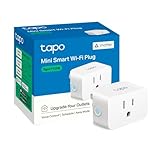
The direct replacement is the Tapo P125M – same compact design, same energy monitoring and scheduling, but with Matter certification added. That means it connects directly to Apple Home, Google Home, or SmartThings without needing a cloud account. If you’re already on the Kasa app, the Tapo app is nearly identical.