

This post contains affiliate links. If you buy through them, DumbSwitches may earn a commission at no extra cost to you. See our full disclosure.
Geeni cameras trip up in predictable ways – and most of the fixes take under two minutes. This covers every common issue: WiFi won’t connect, camera goes offline, motion detection stops firing, video looks like a potato, SD card not showing up, and the nuclear option (factory reset) when nothing else works.

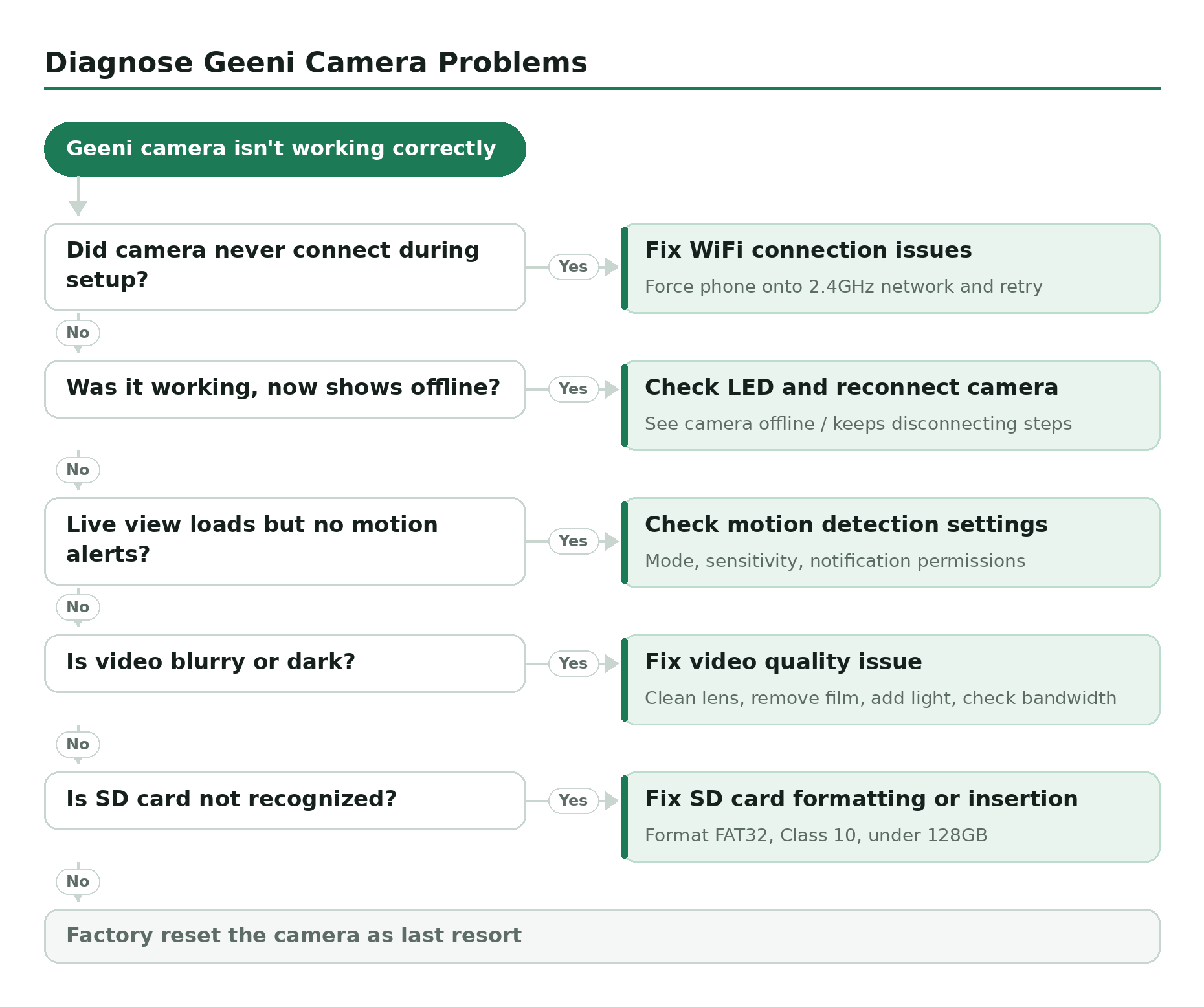
Quick Diagnostic: What’s Actually Wrong?
- Camera never connected during setup – go to WiFi connection issues
- Camera was working, now shows offline – go to camera offline / keeps disconnecting
- Live view loads but no motion alerts – go to motion detection problems
- Video is blurry or dark – go to video quality issues
- SD card not recognized – go to SD card problems
- Nothing works – go to factory reset
WiFi Connection Issues
This is the #1 support complaint for Geeni cameras, and the cause is almost always the same thing: 5GHz WiFi. Geeni cameras are 2.4GHz only – they physically cannot connect to a 5GHz network, and the error you get is identical to a wrong password. Before you do anything else, force your phone onto your 2.4GHz network (usually labeled with a “2G” or “_2.4” suffix), then retry setup.
If you have a mesh network or a single SSID that combines both bands, your phone may be on 5GHz automatically. Go into your router’s admin panel and temporarily split the bands into separate SSIDs, or disable 5GHz just for setup. Once the camera is connected it’ll stay connected – you can re-enable 5GHz after.
Per Geeni’s official support page, the router encryption should be WPA2-PSK with AES. If your router is still on WEP or WPA (original), that’ll block the connection too.
Force your phone onto 2.4GHz WiFi
Go to your phone’s WiFi settings and connect specifically to your router’s 2.4GHz network – usually labeled with “2G”, “2.4”, or a separate name from your 5GHz network.
Open the Geeni app and tap + to add a device
Select Wi-Fi Camera, then enter your WiFi name and password. Double-check the password – spaces and capitalization matter.
Put the camera in pairing mode
Hold the reset button for 5-8 seconds until the LED flashes rapidly or you hear a voice prompt. This indicates the camera is in setup mode and ready to pair.
Complete the pairing in the Geeni app
Follow the on-screen prompts. Keep the camera within 3 feet of the router during initial setup – you can move it to its permanent location after the connection succeeds.
Check for firmware updates after setup
Go to device settings in the Geeni app and tap ‘Check for Firmware Update’. Geeni pushes patches frequently – running old firmware is a common cause of connectivity problems.
Full setup walkthrough is at Geeni camera setup and how to set up the Geeni app.
Camera Offline / Keeps Disconnecting
A camera that goes offline after previously working is a different problem from one that never connected. The most common causes: the camera is out of range, the router rebooted and the camera didn’t reconnect cleanly, or there’s a firmware bug that’s already been patched.
Check the LED color first. Solid blue means connected and working fine. Flashing blue means the camera is trying to connect but hasn’t succeeded yet. Solid red means offline or disconnected. Flashing red means the camera is in setup/pairing mode. Full LED reference at Geeni camera light meanings.
If the LED is solid red: unplug the camera for 30 seconds, plug it back in, and wait 60 seconds. If it comes back online, you’re done. If it stays red, reboot your router (not just the camera). If it still won’t reconnect, check the firmware – go to device settings in the Geeni app and tap Check for Firmware Update. A bad firmware version can cause exactly this behavior and the fix is a 2-minute update.
Range issues are easy to diagnose: if the camera reconnects when you bring it close to the router but drops out again at the install location, you need either a WiFi extender or to move the router. The Geeni app won’t tell you signal strength, so test physically.
Motion Detection Not Triggering
If the camera is online and live view works but motion alerts have stopped, there are three things to check in order.
First: mode. If you’re in “Home” mode, motion detection may be set to not send alerts (that’s the design – home mode assumes you’re present). Switch to “Away” mode or check your alert settings per mode.
Second: sensitivity. Open device settings in the Geeni app, tap Motion Detection, and check the sensitivity slider. Low sensitivity misses small movements entirely. Medium is usually the right setting – high generates too many false positives from shadows and light changes.
Third: phone notification permissions. The camera detects motion just fine but the alert never reaches you because your phone blocked the Geeni app. Go to your phone’s app settings, find Geeni, and confirm notifications are enabled.
Video Quality Issues
Blurry daytime video almost always has a physical cause. Geeni’s indoor cameras sit near kitchen counters, shelves, and other surfaces that generate grease, dust, and condensation. Check the lens for smudges – wipe it gently with a microfiber cloth.
Also pull off the plastic lens protector if the camera is new. It ships with a thin film over the lens that’s easy to forget, and it makes every image look soft and slightly hazy.
For night vision problems: don’t point the camera directly at a window. The IR reflection off glass washes out the entire image. If night vision is dim or patchy, add a small light source in the room – it doesn’t need to be bright, just enough for the sensor to work with. Night vision struggles in total darkness at ranges beyond about 10 meters.
Video that’s choppy or keeps buffering is a bandwidth issue, not a camera issue. Check your upload speed at the router – if you’re streaming to the cloud and your upload is under 2 Mbps, you’ll get choppy footage. The Geeni Look 2K camera needs a bit more bandwidth than the older 1080p models, so this matters more on 2K hardware.
SD Card Not Detected
Geeni cameras are picky about SD cards. The requirements: FAT32 format, Class 10 speed rating (or UHS-I), max 128GB. Cards that don’t meet these get ignored entirely or show as detected but fail to record.
If your card isn’t showing up: format it to FAT32 on your computer first (not exFAT, which is the default for cards over 32GB on Windows). Insert it while the camera is powered off, then power it back on. The Geeni app should detect it within 30 seconds. More on local storage options at Geeni camera storage.
If the card was working and suddenly stopped: the camera may have corrupted the filesystem during a power interruption. Format the card again (you’ll lose any saved footage) and reinsert.
Factory Reset as Last Resort
Factory reset wipes all settings and removes the camera from your Geeni account. Use it when: the camera is completely unresponsive, it was previously set up under a different account, or you’ve tried everything else and it still won’t connect.
Locate the reset pinhole
On most Geeni cameras the reset button is a small pinhole on the bottom or back of the unit. You’ll need a pin, paperclip, or SIM tool to press it.
Hold the reset button for 5-8 seconds
Press and hold until the LED flashes rapidly or you hear a voice prompt saying the camera is resetting. If nothing happens at 5 seconds, keep holding up to 8 seconds. The camera will reboot.
Wait for the camera to enter pairing mode
After the reboot, the LED will flash red, indicating the camera is in setup mode and ready to be added as a new device.
Re-add the camera in the Geeni app
Open the Geeni app, tap + to add a device, select Wi-Fi Camera, and follow the setup process from the beginning. Make sure your phone is on 2.4GHz WiFi before starting.
If the camera won’t reset – the reset button isn’t responding or the LED doesn’t change – unplug it for 5 minutes before trying again. A camera that still won’t respond to a factory reset has a hardware fault. Contact Geeni support at that point rather than continuing to chase a software fix that won’t come.
When to Contact Geeni Support
Contact support when: the factory reset button doesn’t respond, the camera makes no LED indication at all despite being plugged in, or the camera resets and reconnects fine but the video feed is corrupted or black regardless of settings.
When you contact them, have ready: the camera model name (printed on the bottom), the firmware version (visible in Geeni app device settings), and a clear description of what you’ve already tried. Telling support you’ve already done a factory reset and firmware check saves a round of back-and-forth.
Geeni support is at support.mygeeni.com. Response time varies – the help center articles are usually faster than waiting for a ticket reply.