
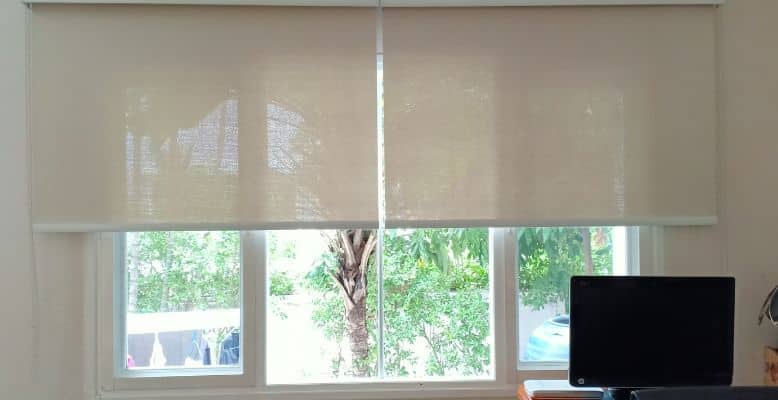
Somfy works with Apple HomeKit – but not directly. You need a TaHoma Switch bridge in the middle. Without one, your Somfy motors and covers stay invisible to the Home app. With one, you get control through Siri and HomeKit automations for a solid subset of Somfy products. It’s a real integration, just not a simple plug-and-play one.

How Somfy and HomeKit Connect
The Somfy TaHoma Switch is the bridge that makes this work. It connects to your Wi-Fi, communicates with your Somfy devices over their radio protocols, and exposes them to Apple HomeKit as a certified accessory. Somfy earned official HomeKit certification for the TaHoma Switch – so you’re not jury-rigging anything here, this is the supported path.
The catch: not all Somfy devices work through HomeKit, even with the TaHoma Switch. Protocol matters a lot.
- io-homecontrol (io) motors – HomeKit compatible via TaHoma. These use two-way 868 MHz radio, which means the bridge gets position feedback. Supported devices include exterior rolling shutters, awnings, exterior screens, and external venetian blinds.
- RTS motors – Not compatible with HomeKit, even through TaHoma. RTS is one-way radio at 433 MHz. The bridge can send commands but gets no status back, and Apple’s HomeKit spec requires bidirectional communication.
- Zigbee devices – Some Zigbee-based Somfy products are also HomeKit-compatible through the TaHoma Switch.
One firm limit Apple imposes: devices that control access to your home – gates, garage doors, door locks – are not authorized for HomeKit through TaHoma. Interior blinds and shades that use RTS are also out. If your Somfy setup is heavy on RTS motors (common in older installs and US market devices), you’ll hit that wall.
For RTS devices, there are workarounds – Homebridge plugins or a Home Assistant setup with the Overkiz integration can bridge RTS to HomeKit – but those are DIY projects, not officially supported paths.
Step-by-Step Setup
Get the TaHoma Switch
You need the second-generation TaHoma Switch (the square one). The older TaHoma box does not support HomeKit. If you already own the current-gen TaHoma Switch, you’re set – no hardware upgrade needed.
Set up TaHoma in the TaHoma app
Download the TaHoma app (iOS or Android), create a Somfy account, and pair your TaHoma Switch to your Wi-Fi network. Add your io-homecontrol motors and covers through the app first. They need to be working in the TaHoma app before HomeKit will see them.
Enable HomeKit in the TaHoma app
In the TaHoma app, go to Settings > Connections > Apple HomeKit. Tap Enable. The app generates a HomeKit pairing code.
Add to Apple Home app
Open the Apple Home app on your iPhone or iPad. Tap the + button, then Add Accessory. Scan the QR code shown in the TaHoma app, or enter the 8-digit code manually. The Home app will discover your eligible Somfy devices.
Assign rooms and build automations
Place each blind or cover in the correct room in the Home app. From here you can control them with Siri, include them in scenes, and build time-based or trigger-based automations. Note: TaHoma scenarios you built in the Somfy app won’t transfer – you rebuild automations inside the Home app.
What to Expect
Once it’s running, the integration is genuinely useful. You can open and close blinds with Siri, set them to a specific position percentage, and include them in HomeKit scenes alongside your lights and thermostat. Response time through the bridge is fine for everyday use.
The main things that won’t work:
- TaHoma scenarios – any automations you set up in the Somfy app stay there and don’t sync to HomeKit
- Access devices (gates, garage doors, door locks) – Apple blocks these category types from third-party HomeKit bridges
- RTS devices – one-way protocol, no HomeKit support through official channels
- Position memory on some older io motors – depends on motor firmware
If you’re buying new Somfy motors specifically to get HomeKit working, make sure you’re buying io-homecontrol versions, not RTS. The packaging or product page will specify the protocol. Get that wrong and the TaHoma Switch won’t be able to expose those devices to HomeKit regardless.