

This post contains affiliate links. If you buy through them, DumbSwitches may earn a commission at no extra cost to you. See our full disclosure.
Ring Doorbell 2 firmware updates itself. You don’t press a button, you don’t open a menu, you don’t do anything. Ring pushes updates to the device automatically when it’s connected to Wi-Fi and not actively in use – usually overnight. If you still own one of these, your firmware is almost certainly current right now without you lifting a finger.
That said, there are two things worth knowing: how to check what version you’re actually running, and what to do if the device seems stuck. Both covered below.
Quick Facts
- Ring Doorbell 2 was discontinued in 2020. Ring still pushes firmware updates to existing units.
- There is no “Check for Updates” button in the Ring app. Updates happen in the background.
- To see your current firmware: Ring app > your doorbell > Device Health > scroll down to Firmware.
- If it shows “Up to Date,” that means Ring hasn’t pushed a newer version to your device yet – not necessarily that you’re on the absolute latest build.
- If it shows a version number, the device is pending an update or Ring hasn’t pushed one to it yet.
How to Check Your Current Firmware Version
Ring doesn’t surface the firmware version prominently, but it’s in Device Health if you know where to look.
What “Up to Date” Actually Means
The “Up to Date” status does not mean you’re running the most recent firmware Ring has released. It means Ring hasn’t pushed a newer version to your specific device yet. Ring stages firmware rollouts – your device gets updated when Ring decides to push it, which can lag a few weeks behind the initial release date.
For a discontinued device like the Doorbell 2, Ring still issues security updates, though the cadence is slower than for current hardware. Don’t read anything alarming into a firmware number that doesn’t match what you see on community forums.
What to Do If Your Firmware Seems Stuck
Occasionally a device will sit on the same firmware version for weeks without moving. Nine times out of ten, it’s a Wi-Fi or power issue. Ring won’t attempt an update on a device with low battery or a flaky connection – it’ll just wait.
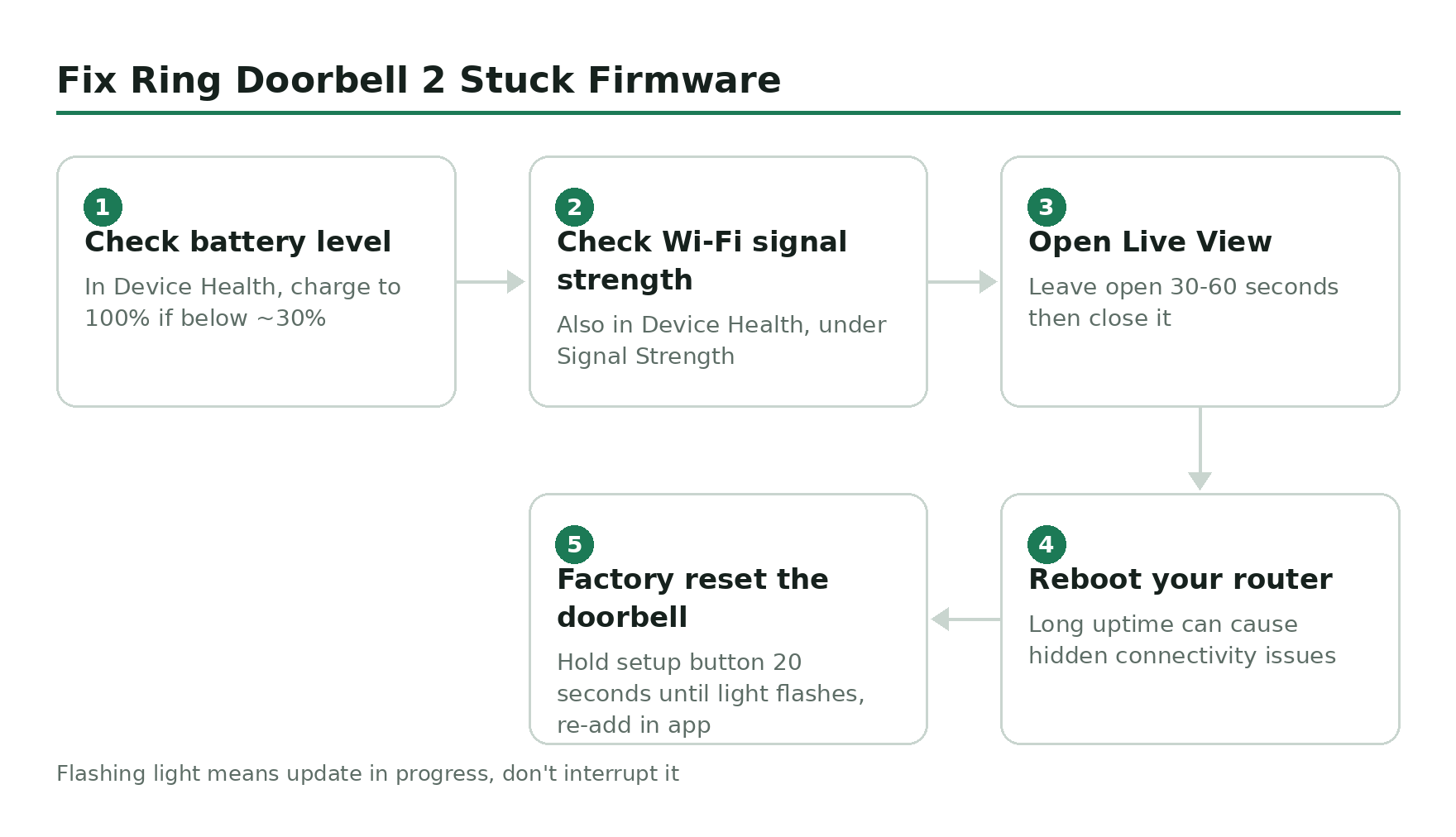
Work through this list before contacting support:
- Check battery level in Device Health. Ring typically won’t update a battery-powered device below around 30%. Charge it to 100% – the battery guide covers charge times and when a battery is actually worn out – and leave it alone overnight.
- Check Wi-Fi signal strength (also in Device Health under Signal Strength). A weak or unstable signal can cause a partial download that keeps retrying and never completes.
- Open Live View on the device for 30-60 seconds, then close it. This forces the device to connect to Ring’s servers and can trigger an update check.
- Reboot your router. It sounds basic because it is, but a router that’s been up for months can create connectivity issues that don’t show up as an outright disconnect.
- If none of that works, do a factory reset: hold the setup button on the back of the doorbell for 20 seconds until the front light flashes, then re-add it in the Ring app.
The flashing light pattern on the front of the doorbell is your indicator that an update is actually in progress. Don’t interrupt it – don’t remove the battery, press any buttons, or cut power. Let it finish.
Why “Discontinued” Doesn’t Mean “Abandoned”
Discontinued and unsupported aren’t the same thing. Ring stopped selling the Doorbell 2 around 2020, but the device still talks to Ring’s servers, still receives firmware, and still gets security patches. Retail availability and support are two different clocks, and only one of them has stopped.
Ring’s own policy commits to security updates for at least four years from the date you bought the device new from Amazon or ring.com. For the Video Doorbell 2, Ring’s support documentation lists that minimum window as running through 31 December 2025 – which has now passed. Ring’s stated position past that date is that it will keep pushing security patches “for as long as we can, subject to technical and other limitations.” That’s not a hard cutoff, but it’s not a permanent guarantee either.
Practically, this means firmware should keep landing on your Doorbell 2 for the foreseeable future, but there’s no fixed date you can circle on a calendar for when that stops. If Ring ever does pull server-side support for this generation, no firmware update will bring it back – at that point it’s a newer doorbell, not a fix.
Worth Knowing: Ring Doorbell 2 Was Discontinued in 2020
If your Doorbell 2 is starting to show its age – slower response, mediocre video quality, shorter battery life – that’s expected. It’s a five-plus-year-old device and Ring has released several generations since. The current equivalent in Ring’s lineup is the Ring Battery Doorbell Plus, which has head-to-toe 1536p HD+ video, color night vision, and a significantly better field of view. Same battery-powered, no-wiring-required setup as the original.
Firmware updates will keep your Doorbell 2 patched and secure for now, but if the hardware itself is failing, a firmware update won’t fix it.