

This post contains affiliate links. If you buy through them, DumbSwitches may earn a commission at no extra cost to you. See our full disclosure.
If you want a reliable WiFi thermostat without paying ecobee prices, Honeywell Home delivers. The T9 is the pick for most people – room sensors, smart scheduling, works with Alexa and Google Home. If you’re deep in Apple HomeKit, though, read the HomeKit section before you buy. Spoiler: it’s complicated.

Budget shoppers who just want remote control and basic scheduling should look at the T6 Pro. The RTH9585WF sits in the middle – more capable than the T6 but a step below the T9’s multi-room intelligence.
Honeywell Home vs. Resideo – Same Thing, Different Label
In 2018, Honeywell spun off its home products division into a separate company called Resideo. The thermostats are still sold under the Honeywell Home brand, but Resideo is the company that actually makes and supports them. You’ll see both names on the packaging and in the app – don’t let it confuse you, it’s the same hardware.
The Resideo app is what you use to control all Honeywell Home thermostats. It works fine. It’s not as polished as the ecobee app, but it gets the job done.
Honeywell Home T9 Smart Thermostat
The T9 is Honeywell’s flagship and the one worth buying in 2026. It supports room sensors (sold separately as Honeywell Home Smart Room Sensors), which means it can read temperature in multiple rooms and adjust heating or cooling based on where you actually are – not just what the thermostat itself reads in the hallway.
It works with Alexa, Google Home, and Samsung SmartThings. The scheduling is flexible – geofencing included. Setup takes about 30 minutes if you have a C-wire (more on that below).
T9 Specs at a Glance
- WiFi: 2.4 GHz
- Room sensors: Yes (Redlink)
- Alexa / Google Home: Yes
- Apple HomeKit: No (Homebridge only)
- IFTTT: Yes
- C-wire: Required
- Display: Color touchscreen
- App: Resideo
Honeywell Home T6 Pro Smart Thermostat
The T6 Pro is the budget entry point. It connects to WiFi, lets you control temperature from your phone, and supports 7-day scheduling. That’s about it. No room sensors, no geofencing, no Alexa or Google Home control – though some versions do support voice assistants depending on the specific model number.
If you just want to stop walking to the wall to change the temperature, the T6 Pro does that job for less money. It’s not a smart thermostat in the “learns your habits” sense – it’s a programmable thermostat with WiFi bolted on.
T6 Pro Specs at a Glance
- WiFi: 2.4 GHz
- Room sensors: No
- Alexa / Google Home: Limited (check model)
- Apple HomeKit: No
- C-wire: Required
- Display: Basic LCD
- App: Resideo
Honeywell Home RTH9585WF
The RTH9585WF is a mid-range WiFi thermostat – more polished than the T6 Pro but without the T9’s room sensor capability. It has a color display, 7-day flexible scheduling, and works with the Resideo app. Compatible with Alexa and Google Home.
This is a decent choice if the T9 is out of budget but you want something that feels more finished than the T6 Pro. The lack of room sensors is the main limitation – for a single-zone home where the thermostat is in a reasonable location, that’s not a dealbreaker.
RTH9585WF Specs at a Glance
- WiFi: 2.4 GHz
- Room sensors: No
- Alexa / Google Home: Yes
- Apple HomeKit: No
- C-wire: Required
- Display: Color touchscreen
- App: Resideo
Honeywell Thermostats and Apple HomeKit – The Honest Answer
None of the current Honeywell Home / Resideo thermostats are natively HomeKit compatible. Not the T9, not the RTH9585WF, not the T6 Pro. There is no Resideo app integration with the Home app. This is a genuine gap in the product line that Honeywell hasn’t addressed.
The workaround is Homebridge – an open-source bridge that runs on a Raspberry Pi or spare machine and makes non-HomeKit devices appear in your Home app. The Homebridge Honeywell Home plugin works well for the T9. It’s not plug-and-play, but if you’re comfortable with basic setup, it’s a viable path.
Full breakdown of the T9’s HomeKit situation (including Homebridge setup steps) is in our dedicated post: Does the Honeywell T9 Work With HomeKit?
If native HomeKit is non-negotiable, look at ecobee instead – the ecobee SmartThermostat Premium has HomeKit built in.
C-Wire – Do You Need One?
Yes, all of the Honeywell Home WiFi thermostats require a C-wire (common wire) for continuous 24V power. If your current thermostat only has R, G, Y, and W wires, you likely don’t have a C-wire.
A few options if you’re missing it: some HVAC systems have an unused C-wire sitting in the wall that was never connected – check before assuming you need new wiring. Honeywell also sells a Honeywell Home C-Wire Power Adapter (THP9045A1023) that works with select thermostats. Otherwise, an HVAC tech can run a proper C-wire for $75-150 depending on your setup.
Don’t skip this step. Installing a WiFi thermostat without a C-wire often results in the thermostat draining power from the HVAC system to charge itself, which can cause your heating or cooling to cycle erratically.
If you’re running a mini split or window unit, not central air, there’s no C-wire to look for at all – see our Sensibo review for how to add smart control without one.
Honeywell vs. ecobee – Who Wins?
It depends what you care about.
ecobee wins on HomeKit integration (native, no workarounds), app polish, and energy reporting. The ecobee SmartThermostat Premium also has a built-in Alexa speaker – a feature Honeywell doesn’t match. If you’re in the Apple ecosystem, ecobee is the obvious choice.
Honeywell wins on price at every tier. The T9 typically runs $30-50 cheaper than a comparable ecobee. The T6 Pro undercuts anything ecobee offers. If you’re not in Apple’s ecosystem and just want a capable WiFi thermostat, Honeywell’s lineup is solid and the Resideo app is reliable enough for daily use.
See also: Does the ecobee3 Lite Work With HomeKit?
How to Install a Honeywell Home Smart Thermostat
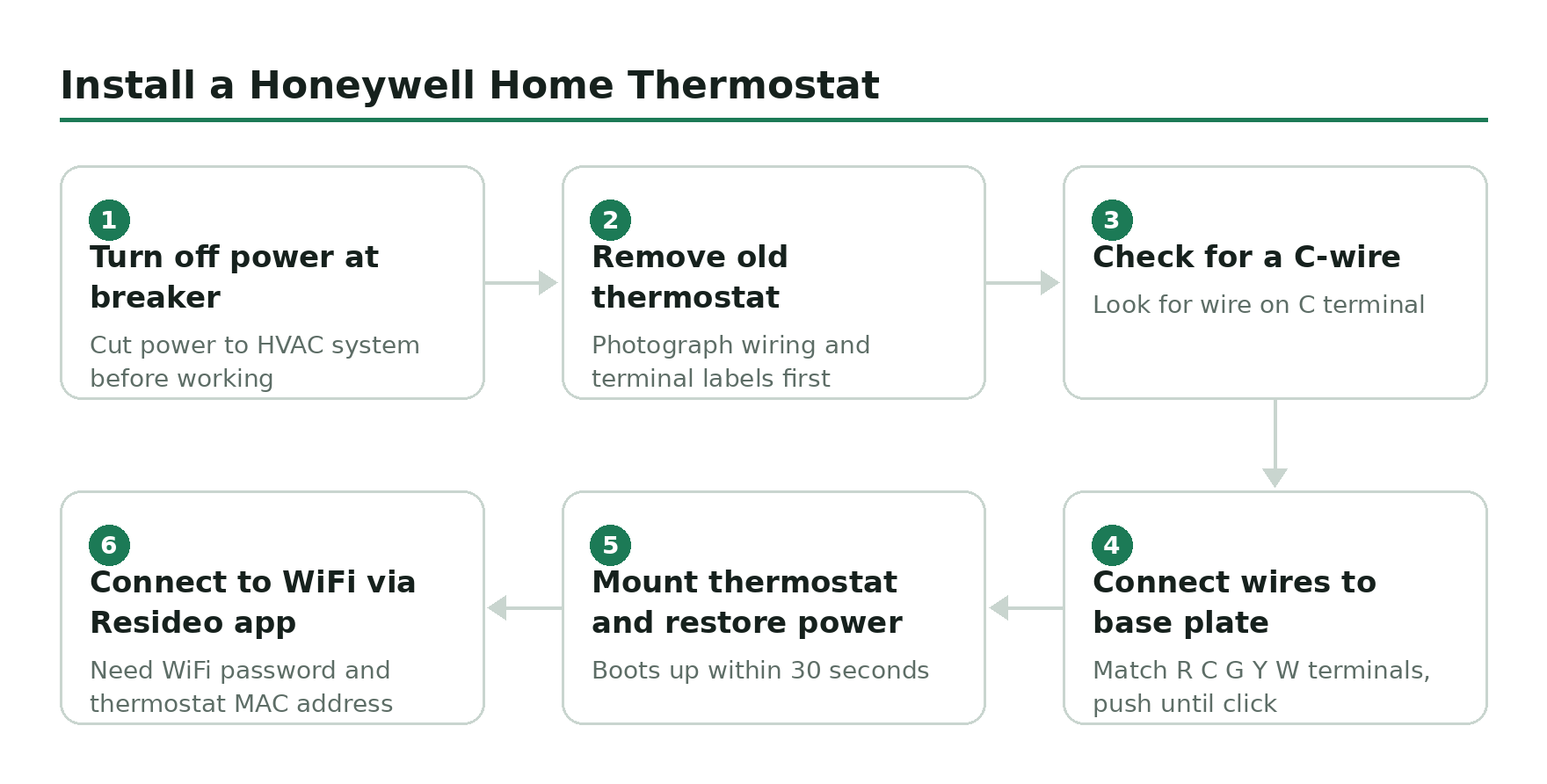
Turn off power at the breaker
Go to your breaker box and cut power to the HVAC system. Don’t skip this. You’re working with 24V wiring but a short can damage the control board.
Remove your old thermostat and photograph the wiring
Take a clear photo of the existing wires and their terminal labels before disconnecting anything. You’ll need this during setup.
Check for a C-wire
Look for a wire connected to the C terminal on your old thermostat or control board. If it’s there, you’re good. If not, see the C-wire section above.
Connect wires to the Honeywell Home base plate
Match each wire to its labeled terminal on the new thermostat’s base plate. The most common terminals are R (power), C (common), G (fan), Y (cooling), W (heat). Push each wire into its terminal until it clicks.
Mount the thermostat and restore power
Snap the thermostat display onto the base plate, go back to the breaker, and restore power. The thermostat should boot up within 30 seconds.
Connect to WiFi via the Resideo app
Download the Resideo app, create an account if you don’t have one, and follow the in-app pairing instructions. You’ll need your WiFi password and the thermostat’s MAC address (printed on the back or shown during setup).